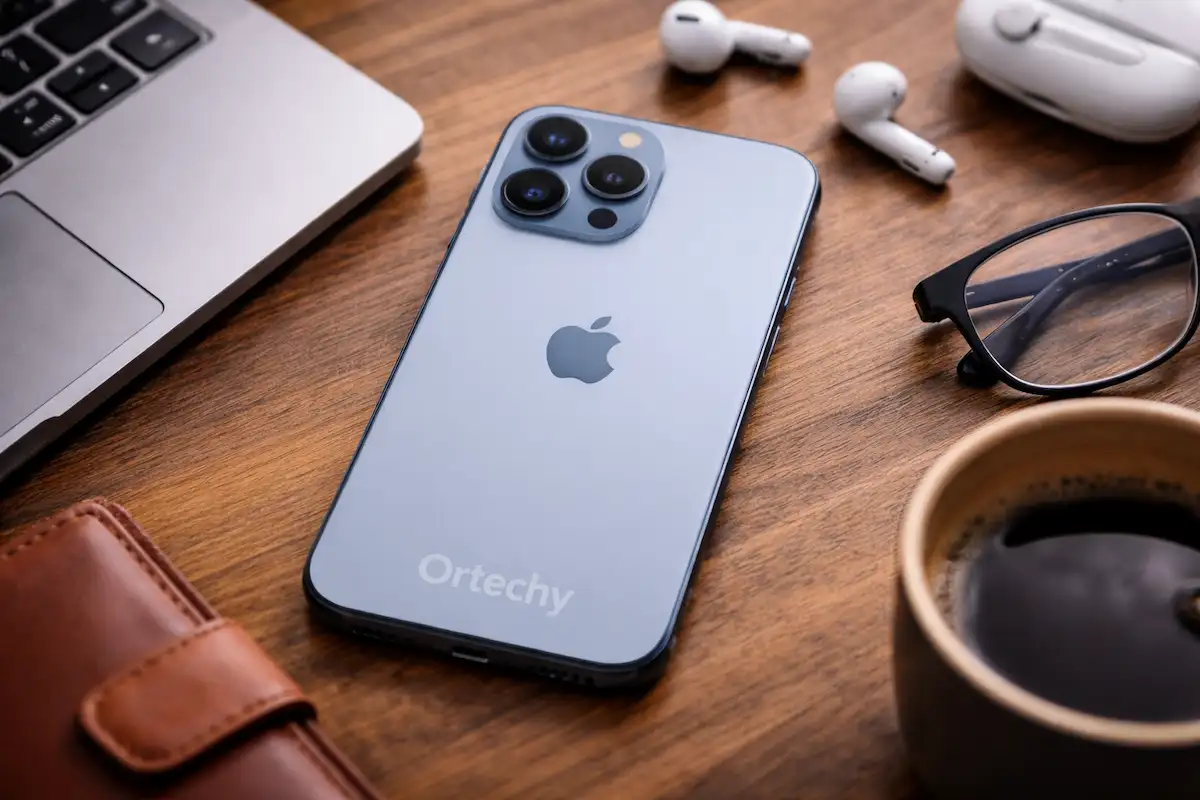
Can You Really Upgrade an iPhone 13 Pro to 1TB in 2026?
Short answer: only if your iPhone 13 Pro already shipped with 1TB, or you replace it with a phone that does. Nothing turns a 128GB, 256GB, or 512GB iPhone 13 Pro into an internal 1TB device without desoldering the storage chip, and iCloud+, external drives, and cloud backup, while genuinely useful, don’t touch the phone’s internal capacity at all. Here’s what each option actually does, and which one fits your situation.
Can You Upgrade the iPhone 13 Pro to 1TB?
Apple built the iPhone 13 Pro in four factory configurations: 128GB, 256GB, 512GB, and 1TB.1 Whichever one you bought is fixed at the hardware level, there’s no slot, no swappable module, and no Apple-supported path to add capacity after purchase. That single fact is the answer to the question behind almost every search for “upgrade iPhone storage”: you’re not upgrading in the sense you’d upgrade a laptop’s SSD or add a microSD card. You’re choosing between four different things:
- Internal NAND storage – the physical flash memory chip soldered to the logic board. This is what “128GB,” “512GB,” or “1TB” actually refers to.
- iCloud storage – space rented from Apple’s servers, entirely separate from the chip inside your phone.
- External storage – a drive or SD card you plug in, which the Files app can read but which never becomes part of the phone’s own capacity.
- Storage optimization – freeing space you already have by removing caches, offloading apps, or storing lighter photo copies locally.
Only one of these (the internal NAND chip) determines the number you see under Settings > General > About > Capacity. Everything else expands what you can access without expanding what’s physically on the device.
Can the Internal Storage Chip Be Replaced?
Technically, yes and this is where a lot of guides either overstate the risk or gloss over it entirely. The NAND chip in an iPhone 13 Pro is soldered directly to the logic board, not socketed, so there’s no clip-in swap the way there is with a laptop SSD.Replacing it means removing the display and battery, lifting the board out, desoldering the original chip with controlled heat, and reballing and soldering a higher-capacity chip in its place, a work that specialist repair shops advertise as a paid service, typically in the $100–$400 range depending on target capacity and shop.
Two things are worth separating here, because guides routinely blur them:
- Is it possible? Yes. On the iPhone 13 generation specifically, the NAND isn’t cryptographically paired to the logic board the way it is on some other Apple silicon, which is part of why third-party shops target this model.
- Is it something Apple supports? No. This isn’t a service Apple Stores or Apple Authorized Service Providers perform or endorse, and doing it yourself or through a third party will void any remaining warranty or AppleCare coverage, carries a real risk of a failed board if the rework goes wrong, and can affect resale value and buyer trust since the device no longer matches its original factory configuration.
Opening the phone or removing the original chip doesn’t automatically “destroy” it but it does convert a sealed, warrantied consumer device into a hand-modified one, and the outcome depends entirely on the skill of whoever does the rework. For most people, this is a niche option for a phone you’re keeping purely for personal use past its warranty life, not a mainstream fix for “my phone is full.”
How to Get More Usable Storage Without Changing the Internal Chip
For everyone else, the real fix is almost always some combination of the four options below which should be chosen based on what’s actually filling up your storage.
Optimize iPhone Storage
Go to Settings > General > iPhone Storage. iOS will show you a breakdown by app and offer recommendations. offloading unused apps (which keeps your data and reinstalls the app later), reviewing large attachments in Messages, and clearing out duplicate or unused files. This costs nothing and is worth doing before anything else, since “system data” and forgotten large files are often a bigger share of used space than people expect.
Use iCloud Photos and Optimize iPhone Storage
This is the setting most often confused with an actual storage upgrade, so it’s worth being precise about what Apple says it does. With iCloud Photos turned on and Optimize iPhone Storage selected, your full-resolution photos and videos are kept in iCloud, and Apple’s own documentation describes what stays on the device as “space-saving versions” — smaller local copies that are swapped in as needed, with originals downloaded on demand when you open them.That’s a genuinely useful way to free up local space, but it depends entirely on having enough iCloud storage to hold your full library, and it does not add a single gigabyte to the phone itself.
Apple’s current iCloud+ pricing in the U.S. is $0.99/month for 50GB, $2.99/month for 200GB, $9.99/month for 2TB, $29.99/month for 6TB, and $59.99/month for 12TB, on top of the 5GB every Apple ID gets free. If your goal is “stop my phone from running out of space because of photos,” this is usually the cheapest and least disruptive fix — but it’s a subscription, and it’s solving a different problem than internal capacity.
Use External Storage
The iPhone 13 Pro uses a Lightning port, not USB-C, which matters for what will actually work. Apple’s Files app can read external USB drives and SD cards connected via a Lightning to USB 3 Camera Adapter or Lightning to SD Card Camera Reader, provided the drive is formatted as ExFAT, FAT32, HFS+, or APFS and doesn’t draw more power than the port can supply. MFi-certified Lightning flash drives (Lightning on one end, USB-A or USB-C on the other) are generally the most plug-and-play option, though several rely on a companion app rather than the Files app for photo and video imports.
The practical limitation: apps generally have to be run from internal storage, so an external drive is good for archiving footage, moving files to a computer, or storing documents you don’t need instantly, not for extending app storage or running apps directly off the drive.
Back Up Photos and Files to a Mac, Windows PC, or NAS
Connecting your iPhone to a computer (via Finder on macOS, iTunes on Windows, or a photo-import tool) lets you copy photos and videos off the device and free the local space they occupied. A NAS works the same way over Wi-Fi, with capacity determined entirely by the drives installed in it, there’s no such thing as “unlimited” NAS storage, despite how it’s sometimes marketed. This is a backup and archiving workflow, not a storage upgrade, and the files you move are only “available” again once you reconnect and retrieve them.
If You Need a Genuine 1TB iPhone
If none of the above is enough and you actually need 1TB of internal capacity, there are two real paths:
- Buy a used or refurbished iPhone 13 Pro that already shipped with 1TB. Since Apple offered 1TB as a factory option on this model from launch, this is often overlooked, a secondhand 1TB unit sidesteps any board-level modification entirely.
- Move to a current iPhone with a 1TB configuration. Apple’s current lineup includes several models offered with 1TB storage, and pricing and exact availability change with each product cycle, so check apple.com/iphone for what’s currently sold before assuming a specific model.
If you’re trading in your current iPhone 13 Pro toward either option, Apple’s trade-in value for this model moves with each new iPhone launch, so check Apple’s own Trade In estimator for a current number rather than relying on a figure that will be outdated within months.
Which Option Fits Your Situation?
- You only need to free 20–50GB: Start with Settings > General > iPhone Storage and offload unused apps, no spending required.
- You mainly store photos and videos: iCloud Photos with Optimize iPhone Storage, sized to a plan that covers your full library.
- You shoot a lot of ProRes or 4K video: Worth knowing that 128GB iPhone 13 Pro units are limited to 1080p ProRes recording, while 256GB and up support 4K ProRes — a factor worth weighing before assuming you need more storage rather than a different configuration entirely.
- You need files available without a data connection: A Lightning-compatible external drive, understanding its Files app limitations.
- You genuinely require 1TB internal capacity, long-term: A secondhand 1TB iPhone 13 Pro, or a current model with a 1TB configuration, not board-level NAND replacement, unless you fully accept the warranty and reliability trade-offs.
Final Answer
You cannot upgrade a 128GB, 256GB, or 512GB iPhone 13 Pro to 1TB through any software setting, subscription, or accessory because internal capacity is fixed at the factory. Board-level NAND replacement can technically change that number, but it’s an unsupported, warranty-voiding repair best reserved for phones you’re keeping well past their useful resale life. For everyone else, the fastest path to “more storage” is optimizing what you have, offloading photos to iCloud, and using external storage or backups for the rest or, if you genuinely need 1TB on the device itself, buying a phone that already has it.

Prince Anichi
Founder and Lead Technology Editor at Ortechy. Covering digital economy shifts, tech ecosystems across Africa, cybersecurity intelligence, and emerging software platforms.