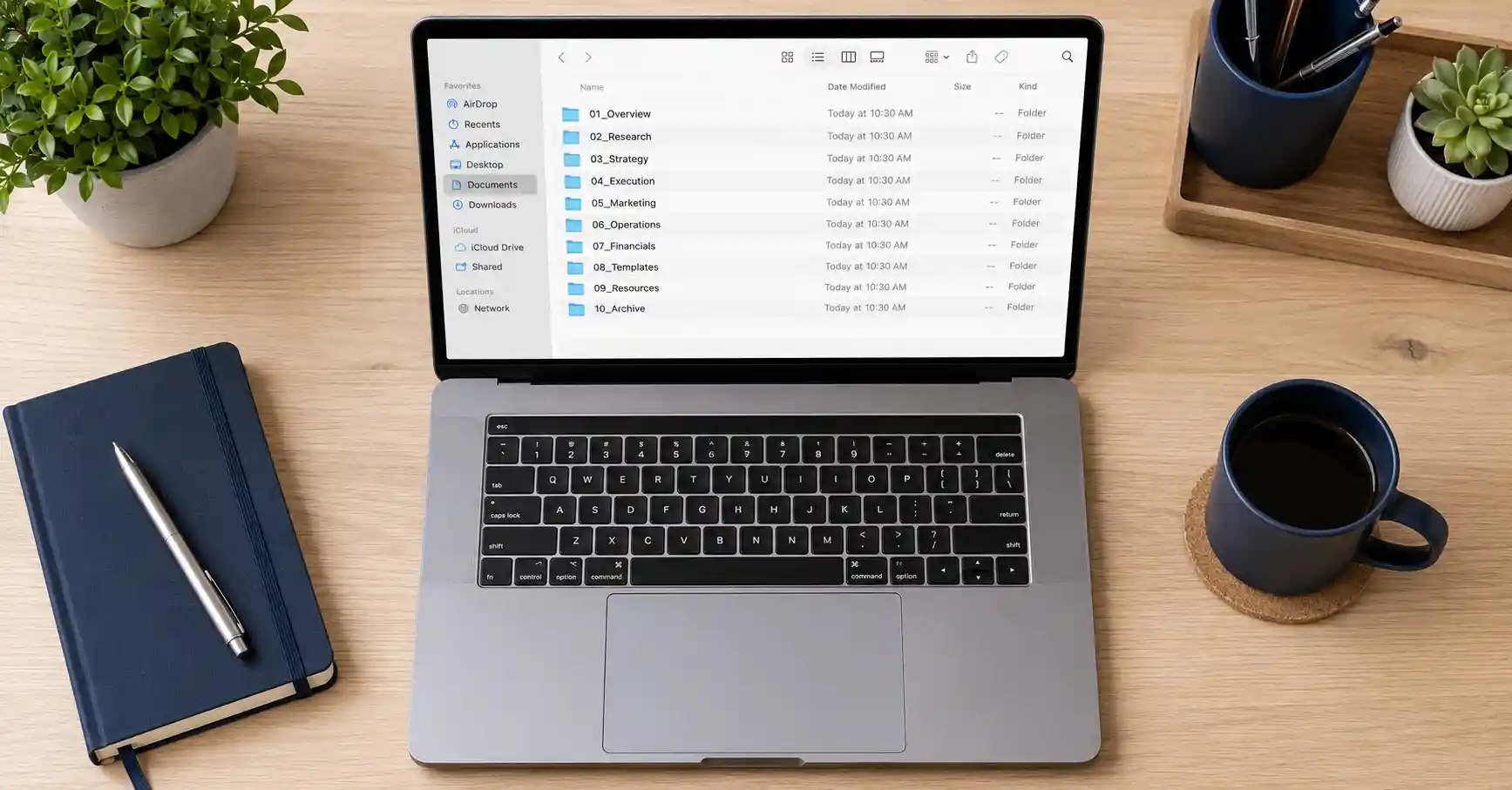
How to Organize Digital Files for Maximum Productivity
Most people do not realize how much time disappears every day just looking for files. According to McKinsey, employees spend an average of 1.8 hours every single day searching for and gathering information, which adds up to more than nine hours per week of lost productive time. That is nearly a full working day gone before you have done any actual work. If that number stings, it should.
The good news is that this is a fixable problem. Learning how to organize digital files properly is one of the highest-return habits you can build as a professional. It does not require expensive software or a complete overhaul of how you work. It requires a clear system, consistent habits, and a willingness to spend one focused hour now to save dozens of hours later.
This guide covers everything from folder structure and file naming to cloud storage strategy and automation tools. Whether you manage files solo or across a team, these methods work. By the end, you will have a practical framework you can start using today.
Why Most People Struggle to Organize Digital Files
The problem usually is not laziness. Most people genuinely intend to keep things tidy. The issue is that digital clutter grows invisibly. Unlike a messy physical desk, you cannot see the chaos building until it is already out of control.
Research from Adobe found that nearly 48% of employees regularly struggle to find documents they need, with many describing their organization’s filing systems as overly complicated or outdated. That figure is striking because it means nearly half the workforce is fighting their own file system every day.
The Hidden Costs of Disorganized Files
Disorganization has a direct financial cost that most businesses never calculate. IDC research highlights that businesses lose up to 21.3% of total productivity due to document-related challenges. For a 10-person team, that is the equivalent of losing two full-time employees to file hunting every year.
Beyond the numbers, there is a psychological cost. Research cited by Whisperit shows that 58% of US office workers cite locating files as a major workplace challenge. Scattered files create mental friction, raise anxiety levels, and reduce the quality of focused work over time. The brain spends energy tracking where things are instead of actually doing the work.
Additionally, task-switching between storage locations makes the problem worse. When your files are spread across Google Drive, Dropbox, email attachments, and a local desktop folder, every search requires you to mentally context-switch between systems. That friction compounds throughout the day.
Build a Folder Structure That Actually Makes Sense
The foundation of any good digital file organization system is a logical folder hierarchy. Most people either go too deep, with folders nested five or six levels down, or too shallow, dumping everything into three broad categories. Neither extreme works.
A good rule of thumb is to keep your structure to no more than three or four levels deep. The top level should reflect your broadest categories, such as Work, Personal, Finance, and Projects. Each level below should get more specific but never so specific that you have folders with only one or two files in them.
A Practical Folder Structure for Professionals
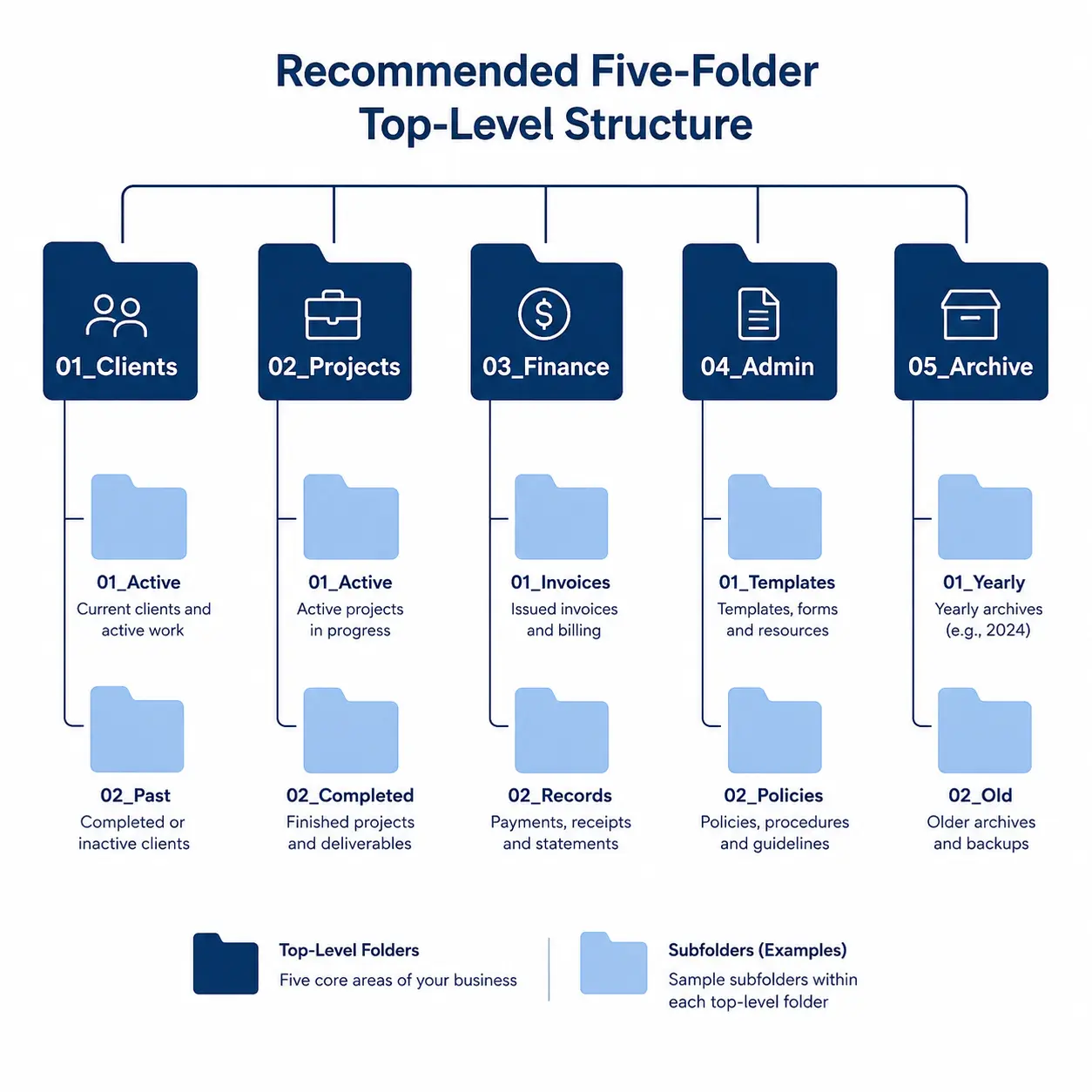
Here is a structure that works well for most freelancers, remote workers, and small teams:
- 01_Clients — One subfolder per client, with subfolders for contracts, deliverables, invoices, and communications
- 02_Projects — Active projects with status-based subfolders: In Progress, Review, Completed
- 03_Finance — Invoices sent, invoices received, tax documents, and bank statements by year
- 04_Admin — Templates, brand assets, legal documents, and tools
- 05_Archive — Completed projects and old client work, organized by year
Notice the numbers at the start of each folder name. This forces the folders to sort in priority order rather than alphabetically, so your most-used categories always appear at the top. It is a small change that makes navigation noticeably faster. The prefix system is borrowed from professional archivists, and it works just as well on a personal hard drive.
File Naming Conventions That Save Hours Every Week
A well-designed folder structure means nothing if the files inside it are named “Document1,” “Final,” or “Final_FINAL_v3.” File naming is where most organization systems break down, because people treat it as an afterthought rather than a core habit.
The single most effective naming format is: YYYY-MM-DD_ProjectName_DocumentType_Version. For example, a marketing proposal sent on June 15, 2025, might be named 2025-06-15_AcmeCorp_MarketingProposal_v2. That name tells you immediately when it was created, what project it belongs to, what it contains, and which version it is.
Rules for Consistent File Naming
Consistency is more important than the specific format you choose. Once you pick a naming convention, you need to apply it to every new file without exception. These rules help maintain that consistency:
- Always use hyphens or underscores instead of spaces. Spaces cause problems in certain software and command-line tools.
- Write dates in ISO format: YYYY-MM-DD. This ensures files sort chronologically in any folder view.
- Use version numbers at the end, not the beginning. Versions change; the project name does not.
- Avoid vague words like “misc,” “stuff,” “new,” or “old.” Every file name should describe its contents to someone who has never seen it before.
- Keep names under 50 characters where possible. Long names are harder to read at a glance.
One habit that makes this easier: name files properly when you save them the first time. Going back to rename old files is tedious. Getting it right on creation takes only a few extra seconds and saves significant time later.
How to Organize Digital Files Across Cloud and Local Storage
The cloud versus local storage debate misses the point. The real question is how to use both strategically so that files are always where you expect them to be, accessible when you need them, and backed up before anything goes wrong.
Think of it like organizing a physical office. You keep frequently used tools on your desk for instant access, reference materials on nearby shelves, and archived documents in a storage room. The same logic applies to digital storage.
Cloud Storage: What to Put There and What Not To
Cloud storage is best suited for files you access regularly, need to share with others, or must access across multiple devices. Services like Google Drive, Microsoft OneDrive, and Dropbox have matured significantly, with Google Drive alone storing over three trillion files as of recent years.
However, cloud storage has limits. Large media files, raw video footage, and massive project archives can eat through storage quotas quickly and cost money at scale. These are better stored on external hard drives or network-attached storage (NAS) devices, which are dedicated home or office storage units that connect to your local network.
A practical hybrid approach works like this. Active projects live in cloud storage for easy access and real-time collaboration. Completed projects get moved to an external drive after 90 days. Financial records and tax documents are stored in both places: cloud for convenience, local backup for security.
The 3-2-1 Backup Rule
No discussion of file organization is complete without addressing backup strategy. The 3-2-1 rule is the industry standard: keep three copies of any important file, stored on two different types of media, with at least one copy stored offsite.
In practice, this means your working file on your computer, a cloud sync copy via Google Drive or OneDrive, and a periodic backup to an external hard drive stored somewhere other than your desk. If one copy fails, you have two others. This is not paranoia. Hard drives fail without warning, cloud accounts can be locked, and ransomware attacks on personal computers have increased significantly over the past five years.
Use Tags and Metadata to Find Files Faster
Folder structures organize files by location. Tags organize files by meaning. The two approaches work well together because they solve different problems. A folder tells you where a file lives. A tag tells you what the file is about, regardless of where it is stored.
Most modern operating systems support file tagging natively. On macOS, you can right-click any file and assign colored tags. On Windows, many apps support metadata tagging. Tools like Eagle, DEVONthink (for Mac), and TagSpaces work across platforms and add powerful search capability on top of your folder structure.
A Practical Tagging System
The Getting Things Done (GTD) methodology, developed by productivity consultant David Allen, offers a useful framework for tagging. Rather than tagging by topic alone, GTD encourages tagging by the action the file requires. A document might be tagged both “client-proposal” and “needs-review,” which means you can pull up every file that needs your attention with a single search.
A simple tagging system might include:
- Status tags: draft, review, approved, archived
- Project tags: one tag per active project or client
- Content tags: invoice, contract, brief, report, template
- Priority tags: urgent, this-week, someday
The key is to create a master list of approved tags and stick to it. If you allow variations like “invoice” and “invoices” to coexist, the system stops working. Spend 20 minutes creating your standard tag list before you start applying tags, and review the list every three months to remove redundant ones.
Automate the Boring Parts of File Organization
Manually sorting every downloaded file is not sustainable. At some point, automation has to do the heavy lifting. The good news is that several tools can handle repetitive file sorting tasks without any technical expertise required.
On macOS, Hazel is the most powerful option. It watches folders you specify and automatically moves, renames, or tags files based on rules you set. For example, you can tell Hazel: “If a PDF arrives in my Downloads folder with the word ‘invoice’ in the name, move it to Finance/Invoices and rename it with today’s date.” That rule runs silently in the background every time.
Tools Worth Using in 2025
Windows users have similar options. File Juggler operates on the same principle as Hazel. For cross-platform automation, tools like Zapier and Make (formerly Integromat) can connect cloud storage services and trigger file actions based on events in other apps. If a client submits a form on your website, Zapier can automatically create a project folder in Google Drive, for example.
Additionally, most cloud storage services now include built-in automation. Google Drive’s filtering and labelling system lets you automatically sort incoming shared files. Microsoft OneDrive integrates with Power Automate for more complex workflows. These built-in tools cost nothing extra and take less than an hour to configure.
Automation does not replace good organizational habits. It amplifies them. If your folder structure is logical and your naming conventions are consistent, automation simply executes those conventions faster than you could manually.
Managing Email Attachments and Downloads
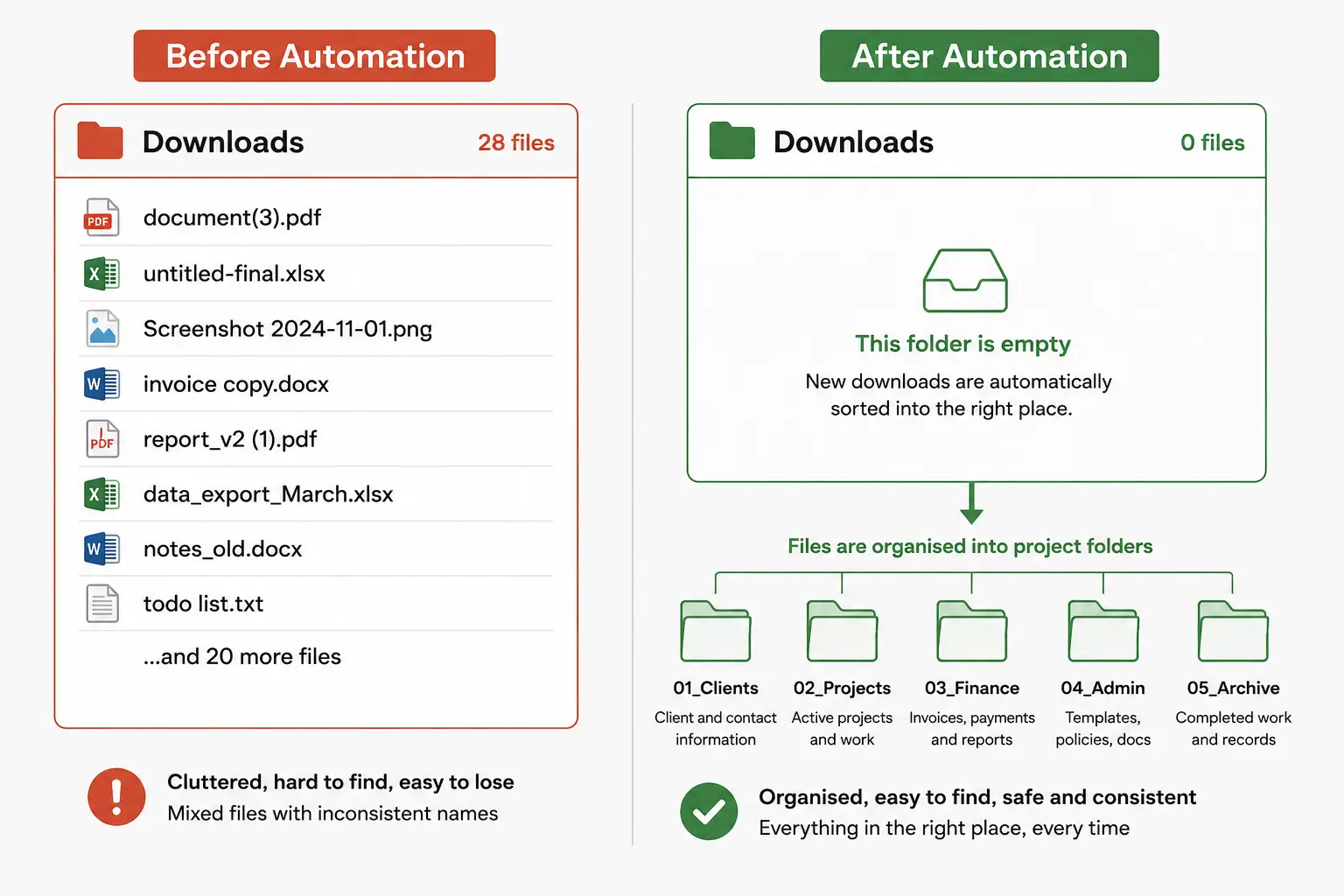
Two of the biggest sources of file chaos are the Downloads folder and email attachments. Most people treat the Downloads folder as permanent storage, which means it gradually becomes an unnavigable graveyard of files with names like “document(3).pdf” and “untitled-export-final.xlsx.”
The fix is straightforward but requires a new habit. Treat your Downloads folder as an inbox, not a filing cabinet. Every file that arrives there should be processed within 24 hours: renamed, moved to its proper location, and the original download deleted. If a file does not belong anywhere in your system, ask whether you need it at all before keeping it.
Handling Email Attachments Cleanly
Email attachments are a separate problem. Many professionals receive dozens of attachments per day and save them directly from their inbox without any naming or filing convention. Over time, this creates duplicate copies, outdated versions, and confusion about which file is current.
A cleaner approach: never save an attachment until you know where it belongs and what it should be named. If a client sends you “proposal.pdf,” do not save it as “proposal.pdf.” Save it as “2025-06-15_ClientName_Proposal_v1.pdf” in the correct project folder immediately. That extra 10 seconds on arrival prevents 20 minutes of confusion later.
For email management itself, tools like Superhuman, Spark, and even Gmail’s built-in label system can automatically sort incoming attachments by sender or subject. Gmail’s filter and label system lets you create rules that tag and archive emails automatically, which reduces the manual overhead of keeping your inbox under control.
Team File Organization: Setting Standards That Stick
Individual file organization is challenging enough. When a team is involved, the difficulty multiplies because everyone has different habits, different default software, and different ideas about what “organized” looks like. Without an agreed system, shared drives become a collective mess within weeks.
The most effective approach is to create a simple written document that spells out the team’s file organization standards. This does not need to be long. A two-page guide that covers folder structure, naming conventions, and cloud storage policies is enough. The goal is to remove ambiguity so that every team member makes the same choices independently.
What a Team File Organization Policy Should Include
- Folder structure diagram — A visual map of how project folders should be structured, from the top level down
- File naming formula — The exact format the team uses, with two or three examples of correctly named files
- Version control rules — How to handle versions (v1, v2, v3) and when to create a new version versus overwrite the existing one
- Archive policy — When files move to the archive folder and who is responsible for doing so
- Shared access rules — Which folders are read-only, which are editable, and who has permission to delete files
Review this policy whenever the team grows or the type of work changes. A policy built for a two-person freelance team will not suit a 15-person agency without updates. The best policies evolve with the team rather than being written once and forgotten.
Regular Digital Declutter: How Often and What to Do
Even the best file organization system accumulates clutter over time. Old project files pile up. Duplicate downloads sneak in. Folders that once made sense become outdated. The solution is a scheduled digital declutter, treated with the same regularity as any other maintenance task.
A practical schedule looks like this. Weekly: clear the Downloads folder and process any new files that landed outside the system. Monthly: review active project folders and move completed work to the archive. Quarterly: audit the entire folder structure, delete obvious duplicates, and update any outdated categories. Annually: do a full review of archived files and delete anything with no legal, tax, or sentimental value.
Finding and Removing Duplicate Files
Duplicate files are one of the most common forms of digital clutter, and they are surprisingly hard to find manually. A file named “report.pdf” and another named “report_copy.pdf” are obvious duplicates, but two files with the same content and different names are much harder to spot by eye.
Tools like dupeGuru (free, cross-platform) and Gemini 2 (Mac) scan your storage for duplicate files based on content, not just name. Running one of these tools quarterly can recover gigabytes of storage and eliminate the confusion of having multiple versions of the same file in different locations. dupeGuru is available free for Windows, macOS, and Linux and takes less than 15 minutes to run on most systems.
Frequently Asked Questions
What is the best folder structure for organizing digital files?
The best folder structure depends on how you work, but most professionals benefit from a top-level structure with three to five broad categories: Clients or Projects, Finance, Admin, and Archive. Keep nesting to no more than three or four levels deep. The most important thing is consistency. A simpler structure you actually use beats a complex one you abandon after a week.
How do I organize digital files that belong to multiple projects?
Tags are the cleanest solution for files that span multiple contexts. Save the file in its primary location, then apply tags for every other category it belongs to. On macOS and most cloud platforms, tagging lets you pull up the file from multiple search paths without creating duplicate copies. Avoid saving the same file in multiple folders, as this leads to version confusion.
What is the best file naming convention for professionals?
The most effective naming convention for professionals is YYYY-MM-DD_ProjectName_DocumentType_Version, for example 2025-06-15_AcmeCorp_Brief_v1. Starting with the date ensures files sort chronologically in any folder. Including the project name and document type means you can identify a file’s contents without opening it. Versions at the end prevent the “Final_FINAL” problem.
Should I use cloud storage or local storage to organize my digital files?
Both have a role. Cloud storage works best for active files, collaborative documents, and anything you access across multiple devices. Local and external storage is better for large media files, completed archives, and anything you do not need to share. The 3-2-1 backup rule, three copies on two types of media with one offsite, is the safest approach for important files.
How do I stop my Downloads folder from becoming a mess?
Treat Downloads as an inbox, not storage. Every file that arrives in your Downloads folder should be processed within 24 hours: renamed with a proper naming convention, moved to its correct location in your folder structure, and the original download deleted. Automation tools like Hazel for Mac or File Juggler for Windows can also be set to automatically clear files older than 30 days from your Downloads folder.
How do I organize digital files when working in a team?
Create a short written file organization policy that covers your folder structure, naming convention, version control rules, and archive policy. Share it with every team member and enforce it at onboarding. Without a shared standard, every person defaults to their own system, and shared drives become impossible to navigate within weeks. Review and update the policy whenever the team changes.

Prince Anichi
Founder and Lead Technology Editor at Ortechy. Covering digital economy shifts, tech ecosystems across Africa, cybersecurity intelligence, and emerging software platforms.