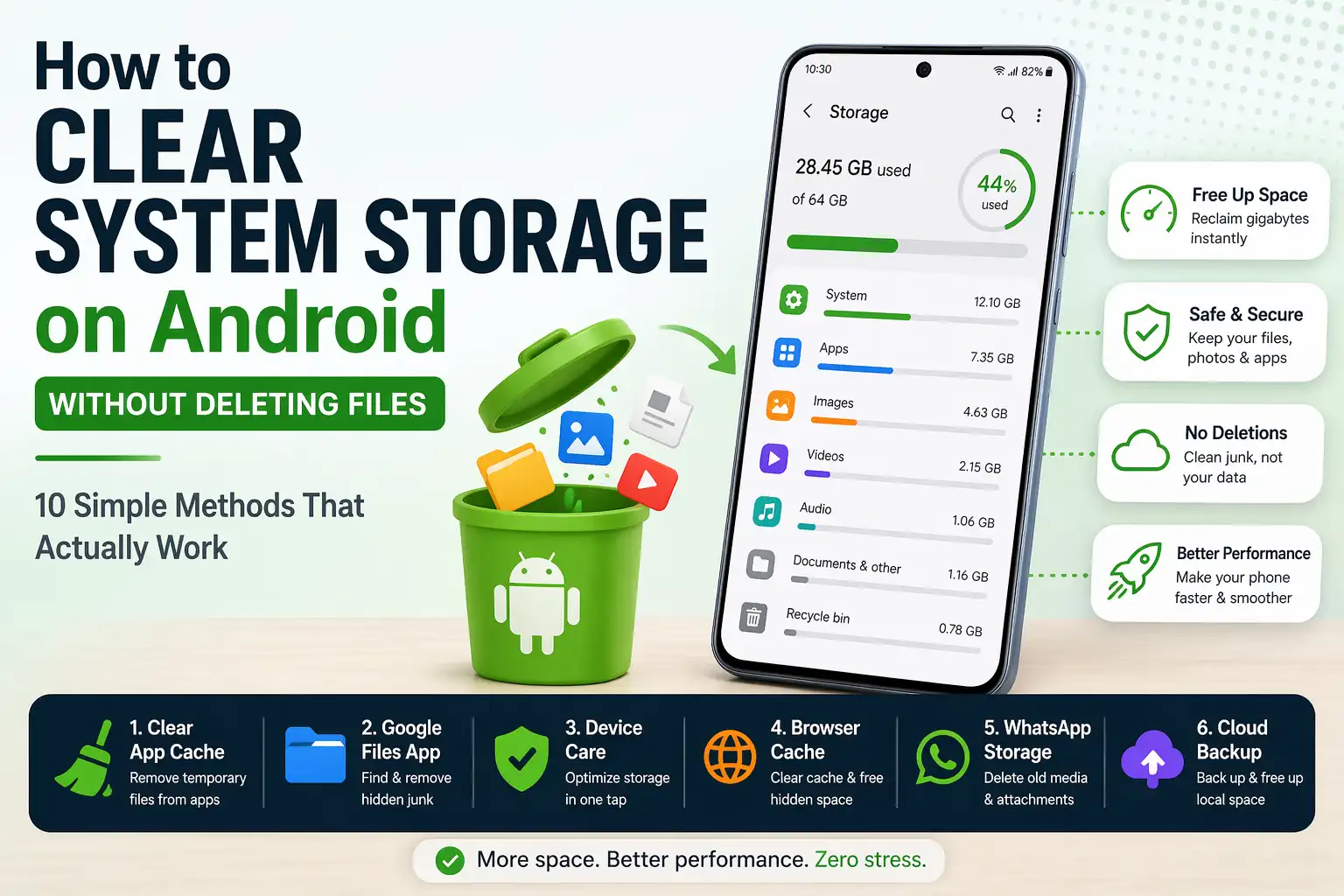
How to Clear System Storage on Android Without Deleting Files: 10 Simple Methods That Actually Work
INTRODUCTION
You open your phone to take a photo and a message pops up telling you your storage is full. You check your files and nothing looks obviously large. You have not downloaded anything unusual. Yet your Android phone is refusing to cooperate and the system storage bar is completely red. This situation frustrates millions of Android users every single day and the good news is that you do not need to delete your photos your apps or any of your personal files to fix it.
System storage on Android fills up in ways that are invisible to most users. Cached files temporary data browser history app logs WhatsApp media and hidden system junk all accumulate quietly in the background over weeks and months until one day your phone starts slowing down refusing to install updates and warning you that storage is critically low.
This guide shows you exactly how to clear system storage on Android without deleting files using ten proven methods that reclaim gigabytes of space without touching a single photo video or document you actually care about. Every method in this guide is safe effective and easy to follow even if you are not a tech expert. Let us start with the quickest wins and work through to the deeper solutions.
What Is System Storage on Android and Why Does It Fill Up
Before you start clearing anything it helps to understand what system storage actually is and why it keeps growing even when you are not consciously adding anything to your phone.
System storage includes the Android operating system itself along with all the pre-installed apps that came with your phone. It also includes the files that every app generates while running including temporary cache files app log files update packages leftover installation files browser data and media that apps download automatically in the background without asking you.
When you open WhatsApp and receive a photo or video it saves automatically to your storage without you doing anything. When Chrome loads a website it stores that page in a cache so it loads faster next time. When an app updates it can leave behind the old installation files. All of this data accumulates and a large portion of it is what your phone labels as system storage or system data.
The important thing to understand is this: most of what fills up system storage is temporary data that your phone does not actually need. Clearing it does not delete your photos documents contacts or any personal information. It simply removes the junk that has built up in the background and gives your phone room to breathe again.
To check how much storage you are currently using open Settings then tap Storage on your Android device. You will see a breakdown showing system apps media and other data which gives you a clear picture of where your storage is going before you start.
Method 1: Clear App Cache on Android (The Fastest First Step)
Clearing app cache is the single fastest way to free up system storage on Android without deleting files. Every app on your phone stores temporary files in a cache to help it load faster. Over time this cache grows enormously. Popular apps like YouTube Netflix Instagram Facebook and Google Chrome are especially aggressive cache builders and each one can accumulate hundreds of megabytes or even multiple gigabytes of temporary data.
Here is how to clear the cache for a single app:
- Open Settings on your Android phone
- Tap Apps or Application Manager depending on your device
- Find and tap the app you want to clear such as YouTube or Instagram
- Tap Storage or Storage and Cache
- Tap Clear Cache
You can repeat this process for every app that is taking up significant storage. Pay special attention to social media apps streaming apps browsers and messaging apps as these tend to accumulate the most cache data over time.
What happens when you clear cache? Your app data your login information your saved settings and your personal content all remain completely intact. The next time you open the app it will simply rebuild its cache from scratch. The app may load slightly slower the first time but will quickly return to normal speed. You will not lose anything important.
For step-by-step instructions tailored to Samsung Galaxy devices read
Samsung’s official guide to clearing app cache and data on Galaxy phones
and for a general Android guide across all manufacturers see
Android Police’s comprehensive guide to clearing app cache and data on Android.
Method 2: Use Google Files to Clean Hidden Junk in One Tap
Google Files is a free app available on the Play Store and it is one of the most powerful tools available for clearing hidden system storage on Android without deleting your actual files. The app does far more than just let you browse your file system. It actively scans your phone for junk files duplicate photos blurry images large files you may have forgotten and temporary data that is safe to remove.
Here is how to use Google Files to free up storage:
- Download Files by Google from the Play Store if you do not already have it installed
- Open the app and tap Clean from the bottom navigation menu
- The app will scan your phone and present you with categories of junk it found including junk files duplicate files large files and apps you have not used in a long time
- Tap Confirm and Free Up next to each category you want to clear
- Review and confirm each batch before the app removes anything
The app gives you complete control. It shows you exactly what it plans to remove before it removes anything and you can review each item individually. Many users report recovering between two and five gigabytes of space on the first scan alone simply from junk files and duplicates they did not even know existed.
Google Files also includes a Quick Share feature that lets you transfer files to another phone nearby without internet which is useful if you want to move content off your device without deleting it. For the official instructions from Google directly visit
Google’s official Android storage management guide.
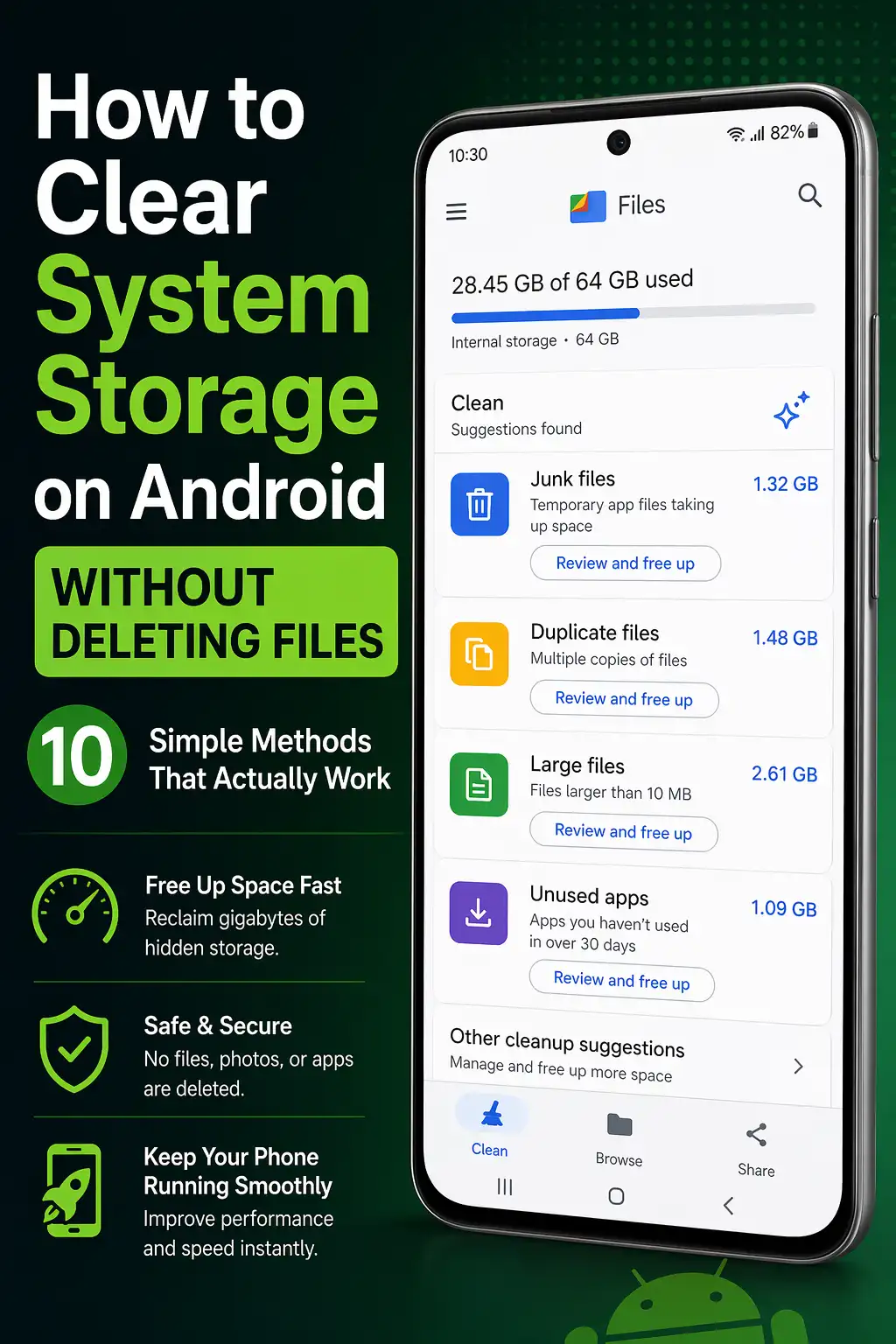
duplicate photos and forgotten large files that are safe
to remove. Many users recover multiple gigabytes on
their very first scan.
Method 3: Use Samsung Device Care to Optimise Storage in Seconds
If you use a Samsung Galaxy phone you have a built-in tool that many users never discover. Samsung Device Care is a comprehensive storage and performance manager built directly into Samsung’s Settings app and it can identify and remove unnecessary files with a single tap.
Here is how to use Samsung Device Care:
- Open Settings on your Samsung Galaxy phone
- Scroll down and tap Battery and Device Care
- Tap Storage to see a full breakdown of what is using your space
- Tap file categories such as Images Videos Audio and Documents to review and remove files you no longer need
- Tap Trash to permanently clear previously deleted files that are still taking up space
- Tap Unused Apps to find apps you have not opened in 30 days or more
- Return to Device Care and tap Memory then tap Clean Now to stop background apps from consuming resources
Samsung Device Care is especially useful because it combines storage management with memory management in a single interface. You can see exactly what is slowing your phone down and clear it without needing any third-party app. For the full official walkthrough read
Samsung’s official guide to improving app performance and clearing cache on Galaxy devices.
Method 4: Clear Your Browser Cache to Reclaim Hidden Gigabytes
Your web browser is one of the most aggressive hidden storage consumers on your entire phone. Every website you visit stores images scripts videos and other files in a browser cache so pages load faster when you revisit them. If you browse the web regularly this cache can grow to several gigabytes without you ever noticing.
Here is how to clear cache in Google Chrome on Android:
- Open Google Chrome on your Android phone
- Tap the three-dot menu in the top right corner
- Tap History then tap Clear Browsing Data at the top of the screen
- Select a time range. Choose All Time to clear everything
- Make sure Cached Images and Files is checked
- Tap Clear Data
You can also choose to leave your Browsing History and Cookies unchecked if you want to keep your saved passwords and login sessions intact. Clearing only the cached images and files removes the storage without logging you out of any websites or losing your browsing history.
If you use Firefox Opera Samsung Internet or another browser the steps are very similar. Open the browser settings look for Privacy or Clear Data and select cached files to remove.
Method 5: Delete WhatsApp and Social Media Cached Media
WhatsApp is one of the biggest hidden storage consumers on any Android phone. Every photo video voice note and document that anyone sends you in any WhatsApp chat gets automatically saved to your storage. If you are in active group chats this can add up to several gigabytes every single month without you saving a single thing yourself.
Here is how to manage WhatsApp storage:
- Open WhatsApp on your phone
- Tap the three-dot menu in the top right corner and select Settings
- Go to Storage and Data
- Tap Manage Storage
- WhatsApp will show you the largest files and media across all your chats
- Tap Review and Delete Items to remove media you do not need
You can also go into individual chats and delete media directly from there. The key point is that removing WhatsApp cached media does not delete the original from the sender’s device or from WhatsApp’s servers. You can always re-download anything you genuinely need later.
Apply the same logic to Instagram Facebook Telegram and Snapchat. Go to Settings then Apps then find each social media app and tap Storage then Clear Cache. You will often recover hundreds of megabytes from each one without losing any personal data.
Method 6: Use the Samsung Hidden SysDump Menu to Clear System Logs
This method is specifically for Samsung Galaxy users and it accesses a hidden diagnostic menu that very few people know about. The menu is called the SysDump menu and it gives you access to advanced system data including RAM usage network logs and most importantly temporary system log files that silently accumulate in the background and consume storage.
Here is how to access and use the SysDump menu:
- Open the Phone app on your Samsung Galaxy device as if you are about to make a call
- Dial *#9900# using the keypad and tap the Call button
- A hidden menu called SysDump will immediately appear on your screen
- Look for an option labelled Delete dumpstate/logcat or something similar and tap it
- Confirm by tapping OK when prompted
- The system will clear those hidden log files and return you to the menu
This method can free up a surprising amount of space especially on phones that have been in use for a long time. The log files that accumulate in the background are purely diagnostic data that the phone generates automatically. Removing them has no effect on your apps your personal data or your phone’s performance. For more detail on this hidden menu and other advanced storage tips read
MakeUseOf’s guide to cleaning Android storage using the hidden system menu.
Method 7: Offload Photos and Videos to Cloud Storage Without Deleting Them
Your photos and videos are almost certainly the largest category of data on your phone and moving them to cloud storage is one of the most powerful ways to free up system storage on Android without deleting your files. Cloud storage means your content lives safely on a server and you can access it any time from any device with internet access.
Google Photos is the simplest option for most Android users. It automatically backs up your photos and videos in the background and once a photo is safely backed up you can delete the local copy from your phone without losing access to it. Google gives you 15GB of free storage shared across Gmail Drive and Photos and Google One plans start at low monthly prices for more space.
Here is how to set up Google Photos backup and free up local storage:
- Open Google Photos on your phone
- Tap your profile photo in the top right corner
- Tap Photos Settings then Backup
- Turn on Backup and choose your preferred backup quality
- Once backup is complete tap your profile photo again and select Free Up Space
- Google Photos will show you how many photos are safely backed up and offer to remove the local copies
- Tap Free Up to remove local copies of all backed-up photos and videos
Other excellent cloud options include OneDrive Dropbox and Amazon Photos. Many Android phone manufacturers also offer their own cloud storage apps such as Samsung Cloud. All of these services keep your content safe and accessible while freeing up the local storage space it was occupying on your device.
Method 8: Clear Your Downloads Folder Regularly
The Downloads folder on your Android phone is one of the most underestimated storage black holes that exists. Every PDF you open every APK you download to install an app every document someone sends you via email and every file you save from a browser ends up here. Over months and years this folder can quietly accumulate gigabytes of files you downloaded once and have completely forgotten about.
Here is how to clear your Downloads folder:
- Open your phone’s File Manager or the My Files app on Samsung devices
- Tap the Downloads folder
- Review the contents carefully. Look for old APK files PDFs images and documents you no longer need
- Select the files you want to remove and tap Delete
Pay special attention to old APK files which are Android installation packages. Once you have installed an app from an APK the installation file itself is no longer needed and can be safely deleted immediately. These files are often large and rarely cleaned up automatically.
This step alone often recovers several gigabytes on phones that have been used for a year or more without a regular cleanup. It is one of the fastest and most effective things you can do and it requires no special tools or technical knowledge.
Method 9: Disable or Uninstall Bloatware to Reduce System Data
Bloatware refers to the pre-installed apps that come with your Android phone that you did not choose and may never use. Manufacturer apps carrier apps and trial software all count as bloatware and they do more than just take up storage space. They also run update processes in the background download their own cached data and contribute to system storage growth over time.
While you usually cannot fully uninstall system apps without rooting your phone you can often disable them which stops them from running consuming resources and adding data in the background.
Here is how to disable bloatware on Android:
- Open Settings on your phone
- Tap Apps or Application Manager
- Tap the three-dot menu and select Show System Apps to see pre-installed apps
- Find an app you never use such as a pre-installed game carrier app or manufacturer utility
- Tap the app and look for an Uninstall or Disable button
- If Uninstall is available tap it to remove the app completely
- If only Disable is available tap Disable to stop the app from running and downloading updates
Be careful with this method and only disable apps you are confident you do not need. If you are unsure about a specific system app search its name online before disabling it to make sure it is not required for your phone to function correctly.
Method 10: Move Files to an SD Card Without Deleting Anything
If your Android phone has a microSD card slot moving files to an external SD card is one of the cleanest ways to free up internal system storage without deleting a single file. Your photos videos music and documents simply move from internal storage to the card where they remain fully accessible at all times.
Here is how to move photos to an SD card on Android:
- Insert a microSD card into your phone’s card slot
- Open the Gallery or Photos app on your device
- Select the photos or albums you want to move
- Tap the three-dot menu and select Move
- Choose the SD Card as the destination
- Confirm and the files move instantly without being deleted
You can also set your camera to save new photos directly to the SD card by default so your internal storage stops filling up automatically. Go to Camera Settings and look for a Storage Location option to switch from Internal Storage to SD Card.
SD cards are an affordable and practical solution especially for phones running low on internal storage. A 256GB microSD card costs a small fraction of a phone upgrade and gives you enormous additional capacity instantly. For more guidance on using SD cards to expand Android storage see
MobiKin’s complete guide to freeing up space on Android devices.
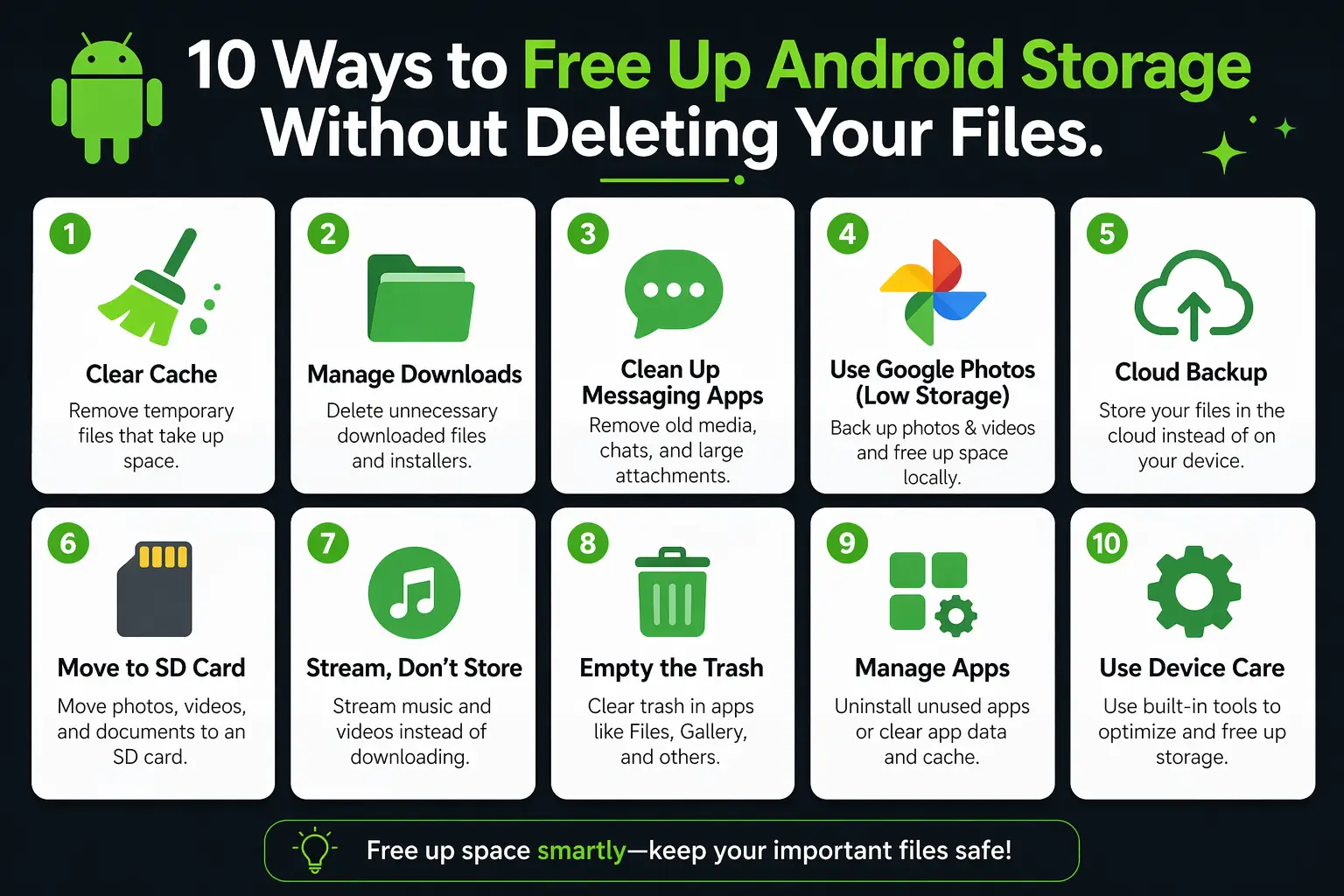
without losing a single photo video or personal file.
Start with clearing cache and use Google Files or
Samsung Device Care for the fastest results.
Quick Storage Tips to Keep Your Android Running Smoothly Long Term
Clearing your storage once is great but building good habits keeps your phone performing well permanently. Here are simple practices that prevent system storage from filling up again in the future.
- Clear app cache once a month. Set a reminder and spend five minutes clearing the cache of your most used apps. This one habit alone prevents storage creep from becoming a serious problem.
- Turn on Smart Storage in Android Settings. Go to Settings then Storage then Free Up Space and enable Smart Storage. This feature automatically removes backed-up photos from your phone when storage runs low giving you an automatic safety net.
- Review your Downloads folder every few weeks. Make it a habit to open your file manager and delete anything in your Downloads folder that you no longer need. Most of what lives there is forgotten and safe to remove.
- Stop auto-saving WhatsApp media. Go to WhatsApp Settings then Storage and Data and turn off automatic media download for photos videos and documents especially on mobile data. This stops gigabytes of unwanted media from accumulating without your permission.
- Use streaming instead of downloading. Where possible stream music and video instead of downloading files locally. Apps like Spotify YouTube and Netflix let you stream content without storing it permanently on your device.
- Enable Google Photos backup immediately. The moment Google Photos has backed up your photos it is completely safe to remove local copies. Keeping backup enabled means you always have this option available when you need space quickly.
For a deeper look at long-term Android storage management see
SamMobile’s guide to clearing Android cache and why you should do it regularly
and the official
Google Android storage management support page
for manufacturer-neutral guidance across all Android devices.
Frequently Asked Questions About Android System Storage
Does clearing cache delete my photos or personal files?
No. Clearing app cache does not delete your photos videos documents contacts or any personal data. Cache files are temporary files that apps create to load faster. Removing them only affects loading speed and even that returns to normal quickly as the app rebuilds its cache during regular use.
Why is my Android storage full after deleting files?
When you delete files on Android they often go to a Trash or Recently Deleted folder rather than being immediately and permanently removed. Open your file manager or Google Photos and find the Trash folder then empty it to permanently free up the space. Also remember that system data cache files and WhatsApp media can take up significant space that is separate from the files you manage directly.
What is system storage on Android and can I delete it?
System storage includes the Android operating system pre-installed apps and essential system files. You cannot and should not delete core system files as doing so can break your phone. However you can safely clear cached data from system apps temporary log files browser caches and junk files which are all part of system storage but are completely safe to remove using the methods described in this guide.
How do I free up storage on Android without a factory reset?
You can free up significant storage on Android without a factory reset by clearing app cache using Google Files removing WhatsApp media backing up photos to cloud storage disabling bloatware and clearing your Downloads folder. Most users recover five to fifteen gigabytes using these methods alone without needing to reset their device.
How often should I clear my Android cache?
Clearing your Android cache once a month is a good general rule. You do not need to clear it daily as doing so too frequently can actually slow down app loading times since apps need to rebuild their cache from scratch each time. Monthly maintenance strikes the right balance between keeping storage clean and maintaining good app performance.
Is it safe to use the Samsung SysDump menu to clear storage?
Yes the SysDump menu is completely safe to use for clearing dumpstate and logcat files. These are temporary diagnostic log files that Android generates automatically. Removing them does not affect your apps your personal data or your phone’s normal operation in any way. It is a feature built into Samsung devices specifically for this kind of system maintenance.
CONCLUSION
You Can Clear System Storage on Android Without Losing a Single File
You now have ten proven reliable methods to clear system storage on Android without deleting files. Start with the quickest wins: clear app cache using the Settings app use Google Files to scan for hidden junk and clear your browser cache. These three steps alone will often recover multiple gigabytes in under ten minutes.
Then tackle the bigger opportunities: back up your photos to Google Photos and use the Free Up Space option to remove local copies move files to an SD card if your phone supports one and use Samsung Device Care or the SysDump menu if you own a Galaxy device. These deeper methods unlock even more space and help your phone run faster more reliably and more efficiently for months to come.
The most important takeaway is this: you do not need to choose between having storage space and keeping your files. The methods in this guide target only the hidden temporary and unnecessary data that your phone accumulates automatically over time. Your photos your videos your music your contacts and everything else you actually care about stay exactly where they are.
Did this guide help you recover space on your Android phone? Try starting with Method 1 and Method 2 right now and leave a comment below telling us how many gigabytes you recovered. Share this article with anyone who is constantly struggling with a full Android phone and help them fix it without losing anything they value.
For additional trusted guidance on managing Android storage visit the
AVG Signal guide to clearing cache on Android phones
and the detailed manufacturer-specific walkthrough at
Samsung UK’s official guide to clearing cache and improving device performance.

Prince Anichi
Founder and Lead Technology Editor at Ortechy. Covering digital economy shifts, tech ecosystems across Africa, cybersecurity intelligence, and emerging software platforms.