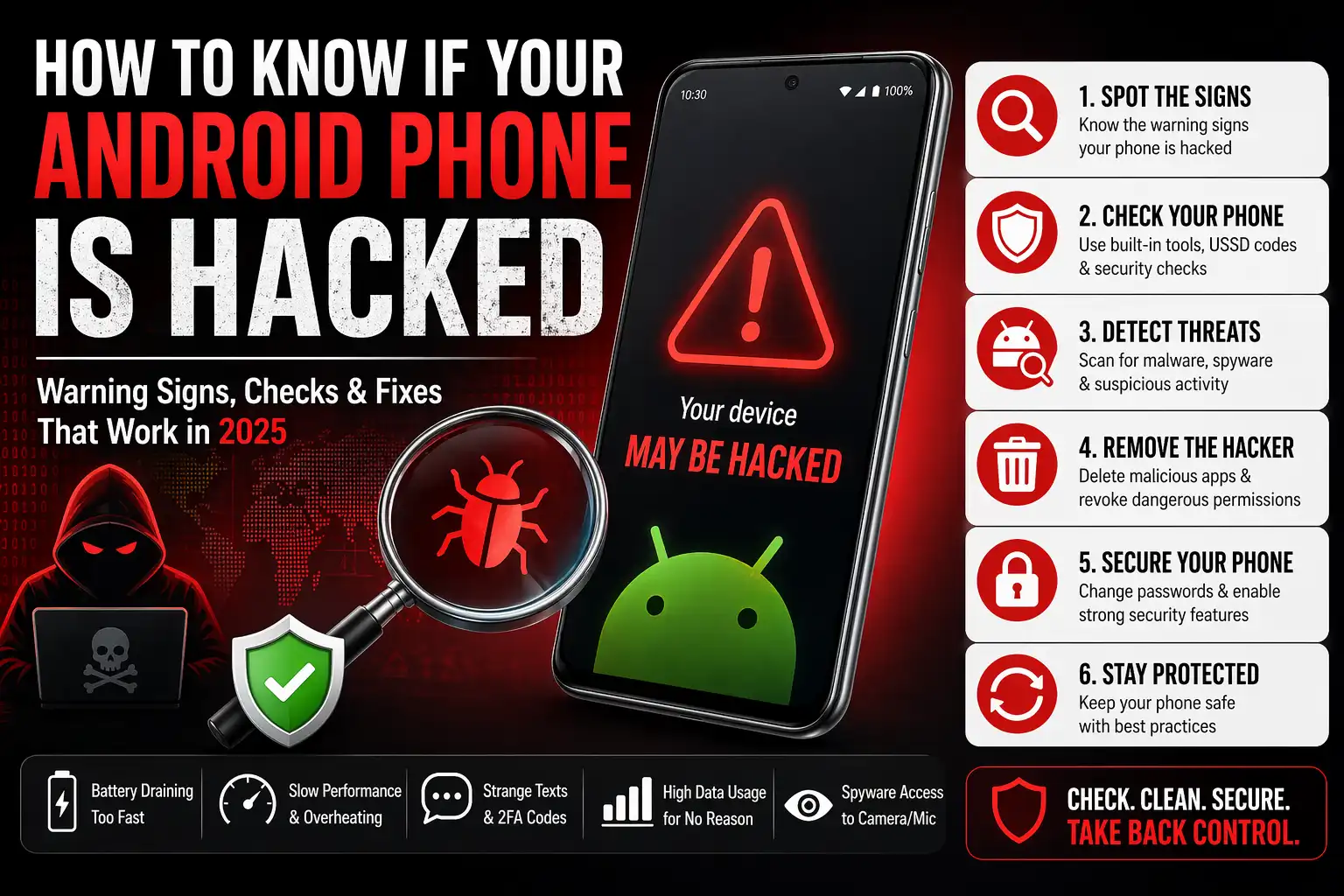
How to Know If Your Android Phone Is Hacked: Warning Signs, Checks and Fixes That Work in 2025
INTRODUCTION
Your Android phone suddenly feels slower than usual. The battery drains in half the time it used to. You notice an app on your home screen that you do not remember installing. You receive a two-factor authentication code for an account you did not try to log into. Something feels wrong but you are not sure if it is a hardware issue or something more sinister.
These are the moments when people ask the most important question: how do I know if my Android phone is hacked?
The answer matters more than ever in 2025. A cybersecurity report from mobile security provider Zimperium found that 18.1 percent of all mobile devices had malware installed. Spyware cases rose 147 percent on Android devices in 2025 alone. Hackers no longer target just celebrities or executives. They target everyday users like you because your phone holds bank details passwords photos private messages and access to every account that matters in your life.
This guide gives you everything you need. You will learn the most reliable warning signs of a hacked Android phone the exact steps to check your device right now the secret USSD codes that reveal hidden threats and the precise actions to take to remove a hacker and secure your phone fast.
The Most Common Warning Signs Your Android Phone Is Hacked
Hackers design malware and spyware to stay hidden. They do not want you to notice their presence. But no malicious software is completely invisible. It uses your phone’s resources and that activity leaves traces you can spot if you know what to look for. Here are the most reliable warning signs that your Android phone has been compromised.
1. Your Battery Drains Unusually Fast
Faster than normal battery drain is one of the clearest early signs of a hacked Android phone. Spyware malware and remote access tools all run in the background constantly. They consume processing power transmit data to remote servers and use your GPS and microphone without your knowledge. All of that activity eats your battery significantly faster than normal apps.
Check your battery usage by going to Settings then Battery then Battery Usage. Look for any app that is consuming an unusually high percentage of battery especially if it is an app you rarely open or one you do not recognise at all.
2. Your Phone Runs Unusually Slow
Malicious software consumes your phone’s processing power and memory in the background. When spyware is active your phone slows down noticeably. Apps take longer to open. The keyboard lags when you type. Videos stutter. Pages take forever to load. If this slowdown appeared suddenly and you have not installed any new large apps it is a significant red flag worth investigating.
3. Your Phone Overheats Without Obvious Reason
Some malware infections use so much of your phone’s resources that the device becomes physically warm or hot even when you are not actively using it. If your phone feels hot while sitting idle on a table or while performing simple tasks like browsing text or making a call that warmth is a sign that something is working hard in the background.
4. You Notice Unfamiliar Apps You Did Not Install
Unfamiliar apps appearing on your device are one of the most direct signs of a hack. Hackers often disguise malware as system tools with names like “Settings Pro” “Message+” “System Service” or similar legitimate-sounding names. They sometimes create duplicate apps that look like real apps but carry hidden malicious code.
Open Settings then Apps then See All Apps and scroll carefully through every single app installed on your device. If you see anything you do not recognise search its name online immediately before deciding whether to remove it.
5. Your Data Usage Spikes Without Explanation
Spyware needs to send stolen data somewhere. It uploads your messages photos browsing history and account credentials to a remote server controlled by the hacker. This transmission uses your mobile data and the result is a sudden unexplained spike in your monthly data usage even during periods when you are using your phone normally.
Check your data usage by going to Settings then Network and Internet then Mobile Network then App Data Usage. Look for any app using data in the background at a volume that does not match how you actually use it.
6. You Receive Strange Calls Texts or Two-Factor Codes
If your contacts tell you they received weird messages from your number that you never sent that is a serious warning sign. It means either your phone is compromised or your phone number has been hijacked through SIM swapping. Similarly if you start receiving two-factor authentication codes for accounts you were not actively trying to log into it strongly suggests a hacker already has your password and is attempting to take over your accounts.
7. Pop-Up Ads Appear Constantly
A sudden flood of pop-up ads especially outside of browser sessions is a classic sign of adware on your Android phone. Adware is a type of malware that generates revenue for hackers by bombarding you with advertising. If you see full screen ads appearing when you open apps that never showed them before or even when your phone is idle suspect adware immediately.
8. Your Camera or Microphone Activates Without Your Input
Modern Android phones show a small indicator when your camera or microphone is active. If you notice this indicator lighting up when you are not using any app that requires camera or microphone access someone or something may be accessing those sensors without your permission. This is one of the most invasive forms of phone hacking and it requires immediate action.
9. Your Phone Restarts or Shuts Down Randomly
Random restarts and unexpected shutdowns that you did not initiate can indicate malware. Some malicious code causes device instability as a side effect. Others restart the phone deliberately as part of their own processes. If your phone restarts several times a week for no hardware related reason that you can identify treat it as a warning worth investigating further.
10. Websites Look Different or Redirect Unexpectedly
If websites you visit regularly suddenly look different or if your browser keeps redirecting you to unfamiliar sites your web traffic may be getting hijacked. This type of attack known as a browser hijack means a hacker is intercepting and redirecting your internet traffic which also allows them to see everything you browse and potentially capture your login details.
According to cybersecurity experts at Aura a 2025 cybersecurity report found that 18.1 percent of all devices had malware installed making Android phone hacking a mainstream threat rather than a rare edge case. For the full breakdown of warning signs see
Aura’s comprehensive guide on how to know if your phone is hacked.
How to Check If Your Android Phone Is Hacked Right Now
Spotting warning signs is the first step. The next step is to actively check your Android phone for signs of compromise using built-in tools codes and settings that most users never look at. Work through each of these checks right now to build a clear picture of your phone’s security status.
Check 1: Enable and Run Google Play Protect
Google Play Protect is Android’s built-in security scanner and it is one of the best free defences available. It scans every app on your phone including those downloaded from outside the Play Store for signs of malicious activity. Many users do not realise they can run a manual scan at any time.
- Open the Google Play Store app on your phone
- Tap your profile photo in the top right corner
- Tap Play Protect
- Tap Scan to run an immediate full device scan
- Review any threats flagged and follow the on-screen instructions to remove them
Make sure the Play Protect toggle is switched on. If it is turned off someone may have disabled it deliberately to prevent malware detection which is itself a serious red flag. For full guidance on using Play Protect see
TechCrunch’s guide to identifying and removing Android spyware.
Check 2: Dial USSD Codes to Check Call Forwarding
USSD codes are short number sequences that communicate directly with your mobile carrier’s network. They do not require internet and they are completely safe to dial. Hackers sometimes enable call forwarding on your number to intercept your calls and two-factor authentication codes. These codes let you check and disable that in seconds.
- Dial *#21# to check if unconditional call forwarding is enabled. If your calls are being forwarded to an unknown number you will see it listed here
- Dial *#61# to check forwarding when your phone is unanswered
- Dial *#62# to check forwarding when your phone is unreachable
- Dial *#67# to check forwarding when your line is busy
- Dial ##002# to instantly disable all call forwarding settings if you find anything suspicious
If any of these codes reveal a forwarding number you do not recognise dial ##002# immediately to cancel it and then change all your account passwords as a precaution. For the full breakdown of USSD security codes read
Hackr.io’s detailed guide to codes that check if your phone is hacked or tapped.
Check 3: Review App Permissions for Camera and Microphone
Spyware and stalkerware almost always abuse accessibility permissions. They grant themselves camera microphone notification and location access so they can silently monitor everything you do. Checking which apps hold these permissions is one of the most reliable ways to spot hidden surveillance software.
- Go to Settings then Privacy then Permission Manager
- Tap Camera and review every app that has permission to use your camera
- Tap Microphone and check every app listed
- Tap Location and verify that only apps you actively use and trust have access
- Revoke permission immediately for any app you do not recognise or that has no reason to need that access
Also check Notification Access and Accessibility Settings under Special App Access. Spyware specifically abuses accessibility access to read everything on your screen including messages and passwords. Remove access for any app you did not deliberately grant it to.
Check 4: Boot into Safe Mode to Isolate the Problem
Android’s Safe Mode disables all third-party apps and runs only core system processes. If your phone’s strange behaviour stops when you are in Safe Mode it confirms that a third-party app is responsible for the problem and you need to find and remove it.
- Press and hold the Power button until the power menu appears
- Press and hold the Power Off option on screen
- A prompt to enter Safe Mode will appear. Tap Safe Mode to confirm
- Your phone will restart and you will see a Safe Mode label in the bottom left corner
- Use your phone normally for a few minutes and check if the issues continue
- While in Safe Mode go to Settings then Apps and uninstall any suspicious apps you find
- Restart your phone normally when you are finished
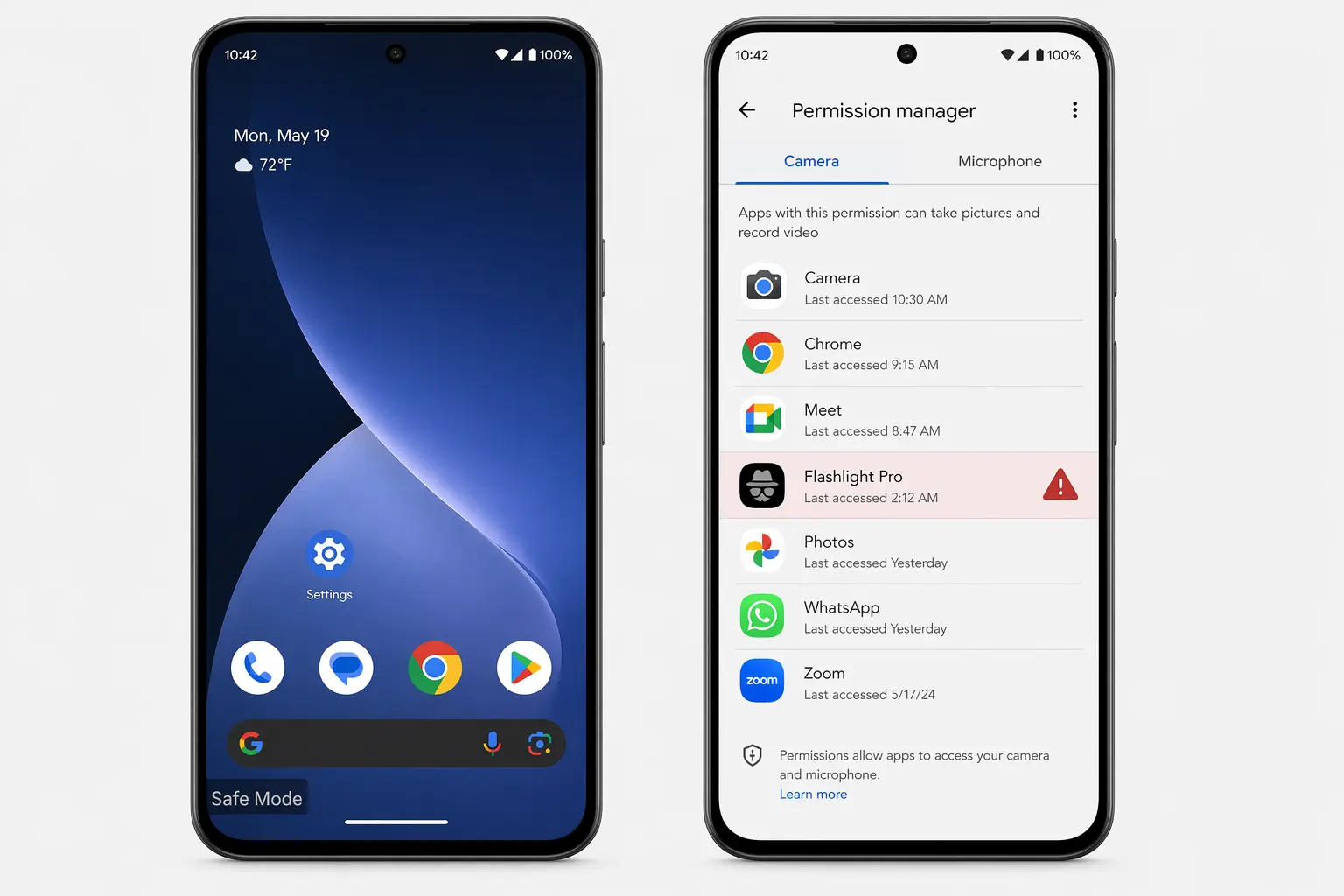
third-party apps so you can confirm a hack. Checking
Permission Manager (right) reveals which apps secretly
hold camera and microphone access on your device.
Check 5: Check for Suspicious Device Admin Apps
Hackers sometimes grant their spyware Device Administrator access so you cannot easily uninstall it. This is a common technique used by stalkerware and advanced spyware. Checking your device administrator settings reveals any app that has elevated control over your device.
- Go to Settings then Security then Device Admin Apps or on some devices Security then Phone Administrators
- Review every app listed here
- Revoke administrator access for any app you do not recognise or did not deliberately grant this level of control
- After revoking access go to Settings then Apps and uninstall the suspicious app
Legitimate apps that commonly hold device admin access include your employer’s mobile device management software Google’s Find My Device and some enterprise security apps. If you see anything else listed here treat it as a serious threat.
Check 6: Review Your Google Account Activity
If a hacker has access to your Android phone they almost certainly targeted your Google account too. Your Google account controls access to Gmail your contacts your calendar Google Photos and every Google service linked to your phone. Checking it for unauthorised activity takes two minutes and can reveal a compromise immediately.
- Open a browser and go to myaccount.google.com
- Tap Security then scroll to Your Devices
- Review every device listed. If you see a device you do not recognise remove it immediately
- Scroll to Recent Security Activity and check for any logins from unexpected locations
- If anything looks suspicious change your Google account password immediately from a different trusted device
What to Do If Your Android Phone Is Hacked: Step-by-Step Fix
You have found evidence of a compromise. Now you need to act quickly and systematically. Every minute a hacker maintains access to your device is another minute they can steal data copy credentials and cause further damage. Follow these steps in order to remove the threat and secure your phone.
Step 1: Disconnect from the Internet Immediately
Turn off your Wi-Fi and mobile data right now. Spyware and remote access tools need an active internet connection to transmit data and receive commands. Cutting the connection stops the data theft in its tracks and denies the hacker real-time access to your device while you clean it up. Go to Settings then Network and Internet and disable both Wi-Fi and Mobile Data.
Step 2: Run a Full Antivirus Scan
Download a reputable mobile security app and run a complete scan of your device. Security experts at Bitdefender note that in 2025 alone malicious apps were downloaded 60 million times from official app stores meaning even apps from trusted sources can carry threats. Use a security app with proven threat detection capability.
Trusted options for Android include Bitdefender Mobile Security Norton 360 McAfee Mobile Security and Avast Mobile Security. Run the scan twice once after removing any suspicious apps you found and again after restarting your device. For guidance on choosing and using mobile security software read
Norton’s complete guide to removing a hacker from your phone
and
Bitdefender’s seven step guide to removing a hacker from your Android device.
Step 3: Uninstall Every Suspicious App
Go through your complete app list and remove anything you do not recognise or anything the antivirus scan flagged as harmful. Pay particular attention to apps with generic names like “System Tool” “Phone Manager” or any app with a blank icon and a random string of letters in the name. If you are unsure about an app search its exact name online before deciding.
- Go to Settings then Apps then See All Apps
- Scroll through every single app installed
- Tap any suspicious app and check when it was installed and how much data it has used
- Tap Uninstall to remove it
- If Uninstall is greyed out the app may have Device Admin access. Remove that first through Settings then Security then Device Admin Apps
Step 4: Change All Passwords from a Different Device
Do not change your passwords using the compromised phone. If spyware is still present it could capture your new passwords as you type them. Use a trusted computer or a different phone to change passwords for every account that matters including your Google account banking apps email social media and any app linked to payment information.
Use strong unique passwords for each account and enable two-factor authentication everywhere possible. Prefer an authenticator app like Google Authenticator over SMS-based codes because SMS codes can be intercepted through SIM swapping attacks.
Step 5: Notify Your Contacts
A hacked phone can put your contacts at risk too. Malware sometimes sends messages or links to everyone in your address book using your identity. Alert your friends and family immediately. Tell them to ignore any suspicious messages they may have received from your number especially if those messages contain links or requests for money or personal information.
Step 6: Enable Samsung Auto Blocker or Android Security Features
If you use a Samsung Galaxy phone enable the Auto Blocker feature which blocks app installations from unknown sources and monitors for suspicious activity. Go to Settings then Security and Privacy then Auto Blocker and switch it on. Also run Samsung’s built-in App Protection scan by going to Settings then Security and Privacy then App Security then App Protection then Scan Phone.
For Samsung-specific security guidance see
Samsung’s official guide on what to do if your Galaxy phone has been hacked.
Step 7: Factory Reset as a Last Resort
If the problem persists after removing suspicious apps and running security scans a factory reset is the most reliable way to eliminate any remaining threat. A factory reset wipes everything from your phone including malware spyware and any modified system settings returning the device to its original clean state.
Before you reset back up your essential contacts and photos to your Google account. Do not restore a full system backup after the reset as the backup itself may contain the compromised apps. Instead reinstall apps individually from the Play Store and monitor your phone for unusual behaviour in the days that follow.
On most Android phones you can factory reset by going to Settings then General Management then Reset then Factory Data Reset. On some devices the path is Settings then System then Reset then Erase All Data.
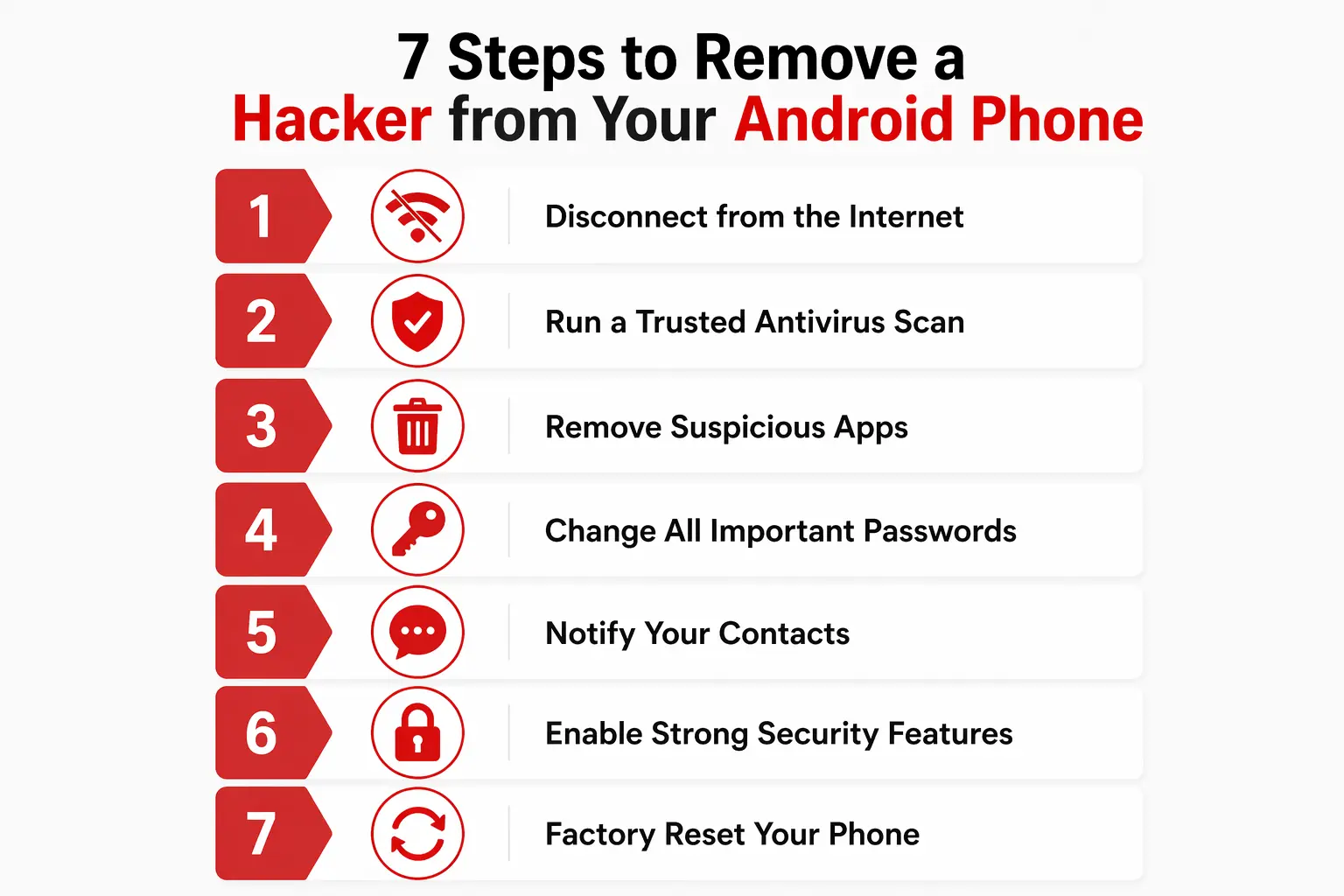
discover your Android phone has been hacked. Speed
matters. Every minute of continued access gives
hackers more time to steal your data and credentials.
How Do Android Phones Get Hacked in the First Place
Understanding how hackers get in helps you close the doors they use. Here are the most common attack methods targeting Android users in 2025.
Malicious apps are the most common attack vector. Hackers publish fake apps disguised as games utilities VPNs or productivity tools. Some slip through Google’s vetting process and reach the Play Store. Many more spread through third-party app stores or links in messages. Always check an app’s developer name review rating count and read recent reviews before installing anything.
Phishing links arrive through text messages WhatsApp emails and social media. They appear to come from your bank your carrier or a familiar service. Tapping the link takes you to a fake site that steals your login details or triggers an automatic download of malware. Never tap links in unsolicited messages especially if they create urgency around your account or a payment.
Public Wi-Fi attacks allow hackers on the same unsecured network to intercept your traffic in what is called a man-in-the-middle attack. Avoid logging into banking or sensitive accounts over public Wi-Fi and use a trusted VPN when connecting to public networks.
Physical access is how stalkerware and spouseware get installed. If someone gains physical access to your unlocked phone for even a few minutes they can install monitoring software that hides from your home screen and silently reports your activity. Always lock your phone with a strong PIN biometric or password.
SIM swapping involves a hacker convincing your mobile carrier to transfer your phone number to a SIM card they control. Once they have your number they receive all your calls and texts including two-factor authentication codes. Setting a SIM PIN with your carrier and securing your email account are the best defences against this attack. For the full McAfee breakdown of how phones get hacked read
McAfee’s guide on how to tell if your smartphone has been hacked.
How to Protect Your Android Phone from Being Hacked
Prevention is far easier than recovery. These habits keep your Android phone secure and make it significantly harder for any hacker to gain access.
- Keep your Android and all apps updated. Security updates patch the vulnerabilities that hackers actively exploit. Go to Settings then Security then Security Update and install every update as soon as it becomes available. Do the same for every app in the Play Store.
- Only download apps from the Google Play Store. Avoid sideloading apps from unknown websites or third-party stores. Every app installed outside the Play Store is a potential entry point for malware. Also check developer credibility and user reviews even for Play Store apps before installing.
- Use a strong screen lock immediately. A PIN fingerprint or face lock prevents physical access to your device which is how many spyware infections begin. Use at minimum a six digit PIN and avoid simple patterns that are easy to guess.
- Enable Google Play Protect. Keep this feature switched on at all times. It continuously scans installed apps for malicious behaviour and alerts you to threats in real time.
- Turn off Install Unknown Apps. Go to Settings then Security and make sure the permission to install from unknown sources is disabled for every app listed. This prevents any app from downloading and installing additional malware without your knowledge.
- Audit app permissions regularly. Every few weeks go to Settings then Privacy then Permission Manager and review which apps hold camera microphone location and notification access. Remove permissions for any app that does not genuinely need them.
- Use a trusted VPN on public Wi-Fi. A VPN encrypts your internet traffic making it unreadable to anyone attempting to intercept your data on a public network.
- Never tap links in unsolicited messages. If you receive an urgent text or email asking you to verify your account or click a link always go directly to the official website by typing the address yourself rather than tapping the link in the message.
- Set a SIM PIN with your carrier. Contact your mobile carrier and request a SIM PIN or account security PIN. This stops hackers from performing SIM swapping attacks to steal your phone number.
For ongoing guidance on Android security practices from one of the most trusted sources in mobile security read
Norton’s complete guide on signs your phone is hacked and what to do
and
Avast’s detailed guide to detecting and removing spyware from an Android phone.
Frequently Asked Questions About Android Phone Hacking
What is the easiest way to tell if my Android phone is hacked?
Check your battery usage and data usage first. Go to Settings then Battery then Battery Usage and Settings then Network and Internet then App Data Usage. Look for any app consuming high battery or data that you did not actively use. Unfamiliar apps in your app list and unexpected two-factor authentication codes are also among the clearest immediate signs.
Does dialing *#21# tell me if my phone is hacked?
Dialing *#21# reveals whether unconditional call forwarding is active on your number. If it shows a number you do not recognise your calls and texts including security codes may be intercepted. However this code only checks call forwarding and does not detect spyware malware or other forms of hacking. Always pair it with a full antivirus scan for complete peace of mind.
Can a factory reset remove a hacker from my Android phone?
Yes in most cases a factory reset completely removes malware spyware and remote access tools by wiping all data and returning the phone to its original clean state. After the reset set up your phone as new rather than restoring a full backup as the backup may contain compromised apps. Reinstall only apps you actively need from the Play Store.
Can my Android phone be hacked without me clicking anything?
Yes although it is less common. Advanced exploits called zero-click attacks can compromise a device without requiring any action from the user. These are typically used against high-value targets. For most everyday users the primary risks remain malicious apps phishing links and physical access to an unlocked device. Keeping your Android updated is the single best defence against zero-click vulnerabilities.
How do I check for spyware on my Android phone?
Check your Permission Manager for unexpected camera and microphone access. Check your Accessibility Settings for apps you did not grant accessibility permissions. Boot into Safe Mode to see if problems disappear without third-party apps running. Run Google Play Protect and a reputable third-party antivirus scan. Also check your Device Admin Apps list for anything unfamiliar. This five-step process catches the vast majority of spyware and stalkerware installed on Android devices. For the full technical walkthrough of spyware detection and removal visit
Android Police’s guide to the ways you can tell if your phone has been hacked.
What should I do first if I think my Android phone is hacked?
Turn off Wi-Fi and mobile data immediately to stop data transmission. Then run Google Play Protect and a trusted antivirus scan. Remove any suspicious apps you find. From a different device change your Google account password and the passwords for your most important accounts. Enable two-factor authentication with an authenticator app. Then work through the full seven-step removal process described in this guide.
CONCLUSION
Protecting Your Android Phone Starts Right Now
Now you know exactly how to tell if your Android phone is hacked and what to do about it. The warning signs are real and they show up in ways that most people dismiss as ordinary phone problems. A battery that drains faster than usual. An app you do not remember installing. A two-factor code arriving for an account you were not accessing. These details matter and recognising them early makes all the difference.
Act quickly the moment you suspect something is wrong. Disconnect from the internet. Run your security scans. Remove suspicious apps. Change your passwords from a safe device. The faster you move the less time a hacker has to exploit what they have already accessed.
And once your phone is clean keep it clean. Update your software. Audit your app permissions. Never tap suspicious links. Use strong unique passwords and two-factor authentication on everything that matters. These habits cost you nothing and they stop the vast majority of attacks before they ever reach your device.
Share this guide with someone you care about. Android phone hacking affects ordinary people every single day and most victims have no idea what happened or what to do. The information in this article could protect someone’s bank account private photos or personal identity. Drop a comment below telling us which warning sign you spotted first and whether these steps helped you secure your phone.
For ongoing Android security news and advice follow
McAfee’s mobile security blog,
Norton’s guide to what to dial if you think your phone is hacked or tapped
and
Security.org’s complete guide to what to do if your phone has been hacked
which are three of the most trusted and regularly updated sources on mobile security available today.

Prince Anichi
Founder and Lead Technology Editor at Ortechy. Covering digital economy shifts, tech ecosystems across Africa, cybersecurity intelligence, and emerging software platforms.