In this article20 sections
- 01.1. Use a Password Manager and Stop Reusing Passwords
- 02.2. Enable Two-Factor Authentication on Every Important Account
- 03.3. Keep All Your Software and Devices Updated
- 04.4. Use a VPN When Connecting to Public Wi-Fi
- 05.5. Review and Limit App Permissions on Your Phone
- 06.6. Use Encrypted Messaging Apps for Private Conversations
- 07.7. Protect Your Personal Data on Social Media
- 08.8. Check If Your Data Has Already Been Breached
- 09.9. Be Cautious with Phishing Emails and Suspicious Links
- 10.10. Use a Secure and Private Browser with Privacy Extensions
- 11.11. Protect Your Personal Data When Shopping Online
- 12.12. Audit Your Digital Footprint and Remove Your Data from People-Finder Sites
- 13.How to Protect Your Personal Data Online: Quick Reference Checklist
- 14.Frequently Asked Questions About Protecting Personal Data Online
- ↳What is the most important step to protect personal data online?
- ↳How do I know if my personal data has been stolen?
- ↳Is a VPN enough to protect my personal data online?
- ↳How do I protect my personal data on social media?
- ↳Do I need to pay for online data protection?
- 15.Protecting Your Personal Data Online Starts Today
How to Protect Your Personal Data Online: 12 Steps That Actually Work in 2026
Learning how to protect your personal data online is no longer optional. It is one of the most important skills you can build right now. Every time you shop, scroll, stream, or sign up for anything online, you leave behind a trail of personal information that companies collect, advertisers buy, and cybercriminals actively hunt.
The numbers tell a clear story. The average US data breach now costs organisations $9.36 million. The FBI processes an average of 758,000 cyberattack complaints every single year. Supply chain breaches almost doubled in 2025, rising from 660 affected entities in 2024 to 1,251 in 2025. And in 2026, criminals use AI-generated phishing emails so convincing that even security experts get fooled.
The good news is that most successful attacks exploit basic, fixable mistakes. This guide gives you 12 clear, practical steps to protect your personal data online, explained simply and without technical jargon. Start with step one today and work through each one. Every step you complete makes you meaningfully harder to target.
1. Use a Password Manager and Stop Reusing Passwords
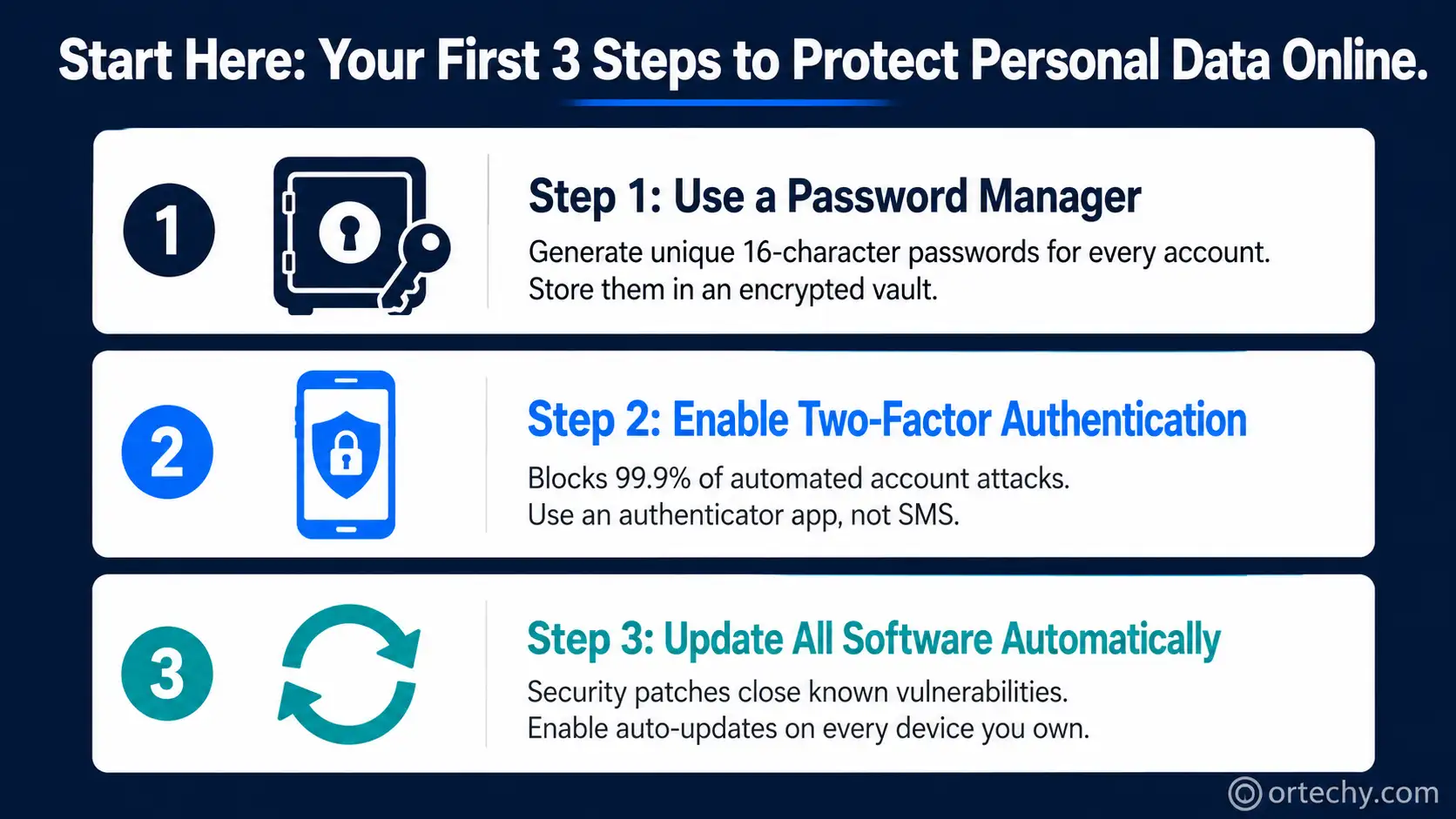
Weak and reused passwords cause more data breaches than any other single factor. When one company you use suffers a breach, criminals take the leaked email and password combination and try it on hundreds of other sites automatically. This attack is called credential stuffing, and it works devastatingly well against anyone who reuses passwords across multiple accounts.
A password manager solves this instantly. It generates a long, unique, random password for every account you create and stores all of them in an encrypted vault. You only need to remember one strong master password. Popular and trusted options include Bitwarden, which is free and open-source, 1Password, and Dashlane. All three are available on every major device and browser.
Make every password at least 16 characters long. Mix uppercase and lowercase letters, numbers, and symbols. Never use your name, birthday, or any word that appears in a dictionary. Your email account password deserves particular attention because email is the master key to every other account you own.
2. Enable Two-Factor Authentication on Every Important Account
Two-factor authentication, also called 2FA or MFA, is the single most effective free protection you can add to your accounts. It requires a second form of verification beyond your password, so even if a criminal steals your password, they still cannot log in without the second factor.
Enable 2FA on your email accounts first. Then add it to your banking apps, social media profiles, and any account storing payment information or sensitive personal details. Use an authenticator app like Google Authenticator or Authy rather than SMS text codes wherever possible. SMS codes can be intercepted through SIM-swapping attacks, while authenticator apps generate codes locally on your device where they cannot be intercepted.
According to Microsoft’s research, enabling MFA blocks over 99.9 percent of automated account compromise attacks. It takes less than two minutes to set up on most accounts and protects you permanently from the most common form of account takeover.
3. Keep All Your Software and Devices Updated
Software updates contain security patches that close vulnerabilities hackers are actively exploiting. Delaying updates creates a dangerous window where your device has a known weakness and criminals have the tools to exploit it. Automated scanners continuously probe the internet for unpatched systems, making delayed updates one of the most reliably dangerous habits in digital security.
Enable automatic updates on every device you own including your smartphone, laptop, desktop computer, and tablet. Update your operating system, your browsers, your apps, and your router firmware. Many people update their phones but forget that their home router runs software that can be years out of date and holds access to everything connected to their home network.
Restart your devices regularly too. Many updates cannot take effect until a device restarts, which means pending security patches sit unactivated on devices that run continuously for weeks without a reboot.
4. Use a VPN When Connecting to Public Wi-Fi
Public Wi-Fi networks in coffee shops, hotels, airports, and libraries are not encrypted by default. Anyone on the same network with the right tools can intercept the data your device sends and receives, including login credentials, personal messages, and financial information. This type of attack is called a man-in-the-middle attack and it is entirely invisible to the victim.
A Virtual Private Network, or VPN, encrypts all the data leaving your device and routes it through a secure server before it reaches its destination. Even if someone intercepts your traffic on a public network, they see only scrambled data they cannot read. Use a VPN every time you connect to a network you do not control.
Choose a VPN with a verified no-logs policy, meaning it does not store records of your browsing activity. Reputable options include ProtonVPN, NordVPN, and Mullvad. Avoid free VPNs that often fund themselves by selling the very browsing data you are trying to protect.
5. Review and Limit App Permissions on Your Phone
Most people grant apps far more access to their devices than those apps actually need to function. A flashlight app that requests access to your contacts, microphone, and location is collecting data it has no legitimate reason to access. That data can be sold to third parties, used to build an advertising profile, or exposed in a breach.
Open your phone’s settings and review the permissions granted to every app. On iPhone go to Settings then Privacy and Security. On Android go to Settings then Apps then Permissions. For each app, ask whether it genuinely needs every permission it holds. Revoke camera access from apps that do not need a camera. Revoke location access from apps that work fine without knowing where you are. Revoke microphone access from anything that does not need to record audio.
Pay particular attention to location permissions. Many apps request always-on location tracking when they only need your location while you are actively using them. Switch any always-on location permission to “only while using the app” and you dramatically reduce the amount of location data those companies collect about your movements.
6. Use Encrypted Messaging Apps for Private Conversations
Standard SMS text messages are not encrypted. Your mobile carrier can read them, and in many countries, law enforcement and hackers can intercept them too. If you send sensitive information like passwords, financial details, or private conversations over regular SMS, that information is exposed in ways most people do not realise.
Switch to an encrypted messaging app for your private conversations. Signal is the gold standard for privacy, using end-to-end encryption that ensures only you and your recipient can read the messages. WhatsApp also uses end-to-end encryption by default. iMessage encrypts messages between Apple devices. For email, consider using ProtonMail which stores all messages in encrypted form and offers end-to-end encryption between ProtonMail accounts.
7. Protect Your Personal Data on Social Media
Social media is one of the richest sources of personal data that criminals use to build profiles for identity theft and targeted scams. Your name, birthday, home city, employer, family members’ names, vacation schedule, and daily routine are all visible on a public social media profile, and all of it is useful to someone planning to impersonate you or social-engineer your contacts.
Set all your social media profiles to private so only people you approve can see your posts. Remove your phone number, home address, and date of birth from your public profile information. Stop posting real-time location updates and avoid announcing that you are away from home on vacation before you return. Never geotag posts that reveal your home location.
Be selective about what information you share in online groups and forums too. Questions like “What was the name of your first pet?” or “What street did you grow up on?” are common security questions for bank accounts and other sensitive services. Sharing answers to those questions publicly hands criminals the keys to your accounts.
8. Check If Your Data Has Already Been Breached
Billions of email addresses and passwords from past data breaches circulate on the dark web right now. Your email address may already appear in databases that criminals use to target accounts. Knowing whether your data has been exposed allows you to take immediate action before it is used against you.
Visit HaveIBeenPwned, a free and trusted service that checks whether your email address appears in any known data breaches. If it does, change the password for the affected service immediately and change it on any other account where you used the same password. Enable 2FA on any affected account right away.
Set up breach monitoring on your important email addresses so you receive an alert the moment a new breach containing your information is discovered. Many password managers including Bitwarden and 1Password include breach monitoring features that check your saved credentials automatically against new breach data.
9. Be Cautious with Phishing Emails and Suspicious Links
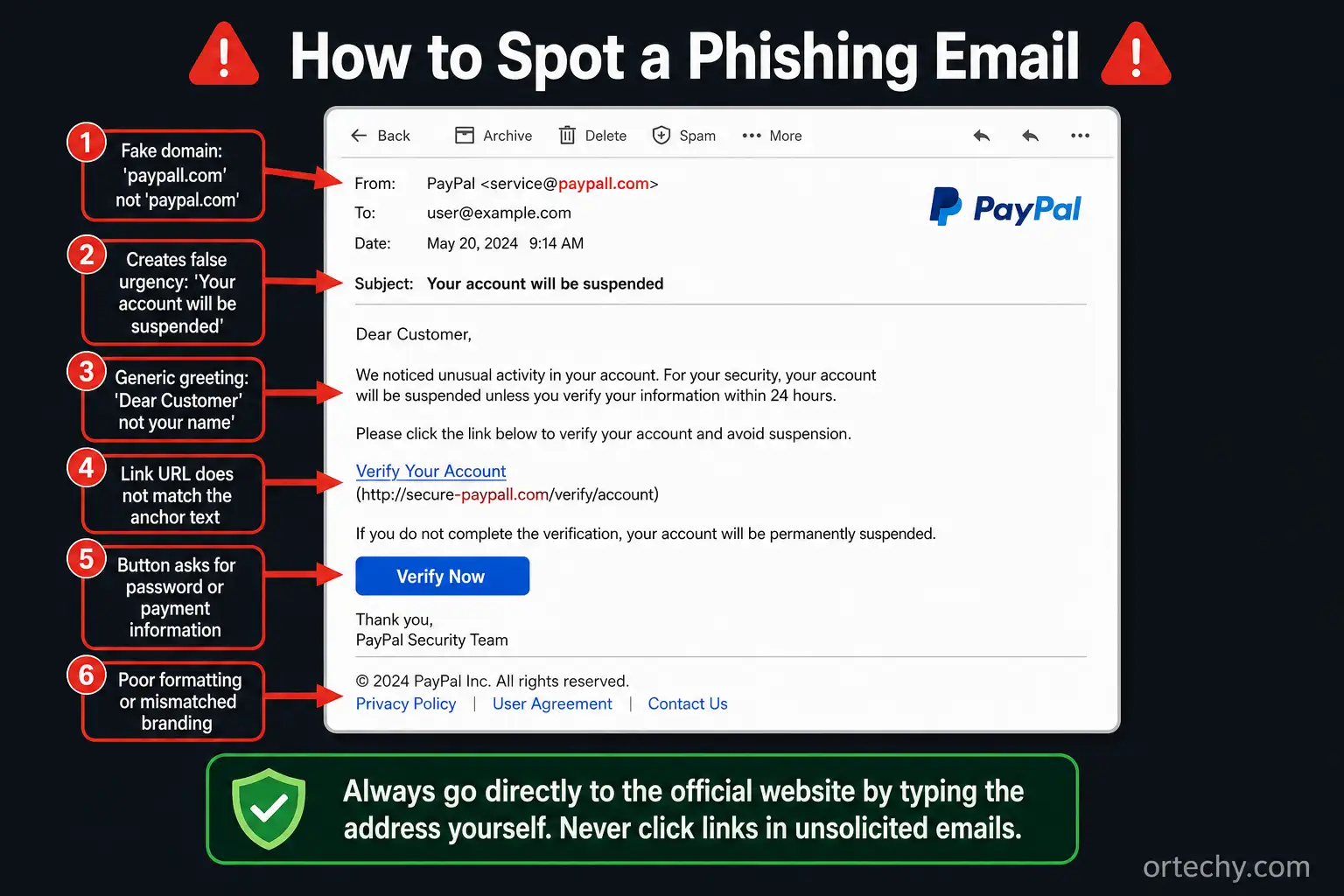
Phishing is the most common method criminals use to steal personal data online, and in 2026, AI-generated phishing emails are so well-crafted that they routinely fool people with strong security awareness. A convincing email that appears to come from your bank, your employer, a delivery company, or a streaming service can trick you into entering your login credentials on a fake site that looks pixel-perfect.
Never click links in unsolicited emails even when they look genuine. Instead, open a new browser tab and type the official website address directly. Look carefully at the sender’s email address, because phishing emails often use domains with subtle misspellings like “paypall.com” instead of “paypal.com.” Be especially sceptical of any email that creates urgency, threatens account suspension, or demands immediate action.
If you receive a call, text, or email from someone claiming to be your bank or a government agency and asking for personal information, hang up or close the message and call the organisation directly using the number from their official website. Legitimate organisations never ask for passwords, PINs, or one-time codes over the phone or via email.
10. Use a Secure and Private Browser with Privacy Extensions
Your web browser collects more data about you than almost any other tool you use daily. It tracks every site you visit, stores your search history, saves form data, and allows advertising networks to follow you across the web using cookies and browser fingerprinting techniques that identify you even in incognito mode.
Switch to a privacy-focused browser or tighten your current browser’s settings. Firefox with privacy extensions is a strong free option. Brave blocks ads and trackers by default. Both dramatically reduce the amount of browsing data that advertising networks can collect about you.
Install the Privacy Badger extension, developed by the Electronic Frontier Foundation, which automatically blocks advertisers and third-party trackers from following you across websites. Add uBlock Origin to block malicious ads that can install malware on your device simply by being displayed on screen. Use HTTPS Everywhere to ensure your connection to websites is encrypted wherever possible.
11. Protect Your Personal Data When Shopping Online
Online shopping creates multiple points where your financial and personal data can be exposed. Using your actual credit or debit card number on unfamiliar websites, saving card details with merchants, and shopping on unsecured sites all create unnecessary risks that are easy to eliminate with a few simple habits.
Use a virtual card number for online purchases wherever your bank supports it. Virtual card numbers are linked to your real account but generate a different number for each transaction. If a merchant suffers a breach or fraudulently charges you, the virtual number can be cancelled instantly without affecting your real card. Many major banks and services including Privacy.com offer virtual card tools free of charge.
Only shop on websites that display HTTPS in the address bar with the padlock icon visible. Check the URL carefully before entering any payment information. Use PayPal or Apple Pay where available because they allow you to pay without sharing your actual card number with the merchant at all.
12. Audit Your Digital Footprint and Remove Your Data from People-Finder Sites
People-finder websites collect and publish your name, home address, phone number, age, relatives, and other personal details without your permission. Most people are shocked to discover their home address appears on 20 or more of these sites and that the information is available to anyone who searches their name. This data makes it significantly easier for criminals, stalkers, and scammers to target you.
Search your full name on Google and see what appears. Visit the major people-finder sites including Spokeo, Whitepages, BeenVerified, and Intelius and look for your profile. Most of these sites have an opt-out process that allows you to request removal of your listing. The process is time-consuming because each site handles it differently, but the protection it provides is worth the effort.
Repeat this audit every six months because these sites regularly repopulate their databases from public records. Services like DeleteMe and Privacy Bee automate this process for a small monthly fee if you prefer not to manage it manually.
How to Protect Your Personal Data Online: Quick Reference Checklist
- Use a password manager and create a unique password for every account
- Enable two-factor authentication on email, banking, and social media accounts
- Keep all devices and software updated with automatic updates turned on
- Use a VPN on every public Wi-Fi network
- Audit app permissions on your phone and revoke any that are unnecessary
- Use encrypted messaging apps like Signal for private conversations
- Set social media profiles to private and share personal details sparingly
- Check HaveIBeenPwned to see if your email has appeared in a breach
- Never click unsolicited links and verify any urgent email by going directly to the official site
- Use a privacy-focused browser with Privacy Badger and uBlock Origin installed
- Use virtual card numbers or PayPal for online purchases
- Remove your data from people-finder sites every six months
Frequently Asked Questions About Protecting Personal Data Online
What is the most important step to protect personal data online?
Enabling two-factor authentication on your email account is the single most impactful step you can take. Your email is the master key to every other account you own because most password reset links go there. If a criminal controls your email they can reset passwords and take over your banking, social media, and any other account linked to that address. Securing your email with 2FA protects everything connected to it.
How do I know if my personal data has been stolen?
Visit HaveIBeenPwned and enter your email address to check immediately. The free service checks your email against a database of billions of records from known data breaches and tells you exactly which services were affected and what data was exposed. You should also watch for unexpected password reset emails, login notifications from unfamiliar locations, unfamiliar charges on your financial accounts, and contact from people claiming to have received messages you never sent.
Is a VPN enough to protect my personal data online?
A VPN is an important layer of protection but it is not enough on its own. A VPN encrypts your internet traffic and hides your IP address, which protects you on public networks and limits tracking by your internet service provider. But a VPN does nothing to protect you from phishing attacks, weak passwords, malware on your device, data breaches at companies you use, or the permissions you grant to apps. Use a VPN as one part of a broader protection strategy rather than as a complete solution.
How do I protect my personal data on social media?
Set all profiles to private, remove contact and location information from your bio, and stop sharing information that answers common security questions. Avoid posting real-time location updates or announcing trips before you return home. Review your friends or followers lists regularly and remove anyone you do not know personally. On Facebook specifically, check the Privacy Checkup tool under Settings which walks you through every major privacy setting in a single guided session.
Do I need to pay for online data protection?
Most of the most effective protection is completely free. Bitwarden is a free password manager. Google Authenticator and Authy are free 2FA apps. HaveIBeenPwned is free. Privacy Badger and uBlock Origin are free browser extensions. Firefox and Brave are free browsers. Many banks offer free virtual card numbers. The main things that cost money are paid VPN services, paid password manager plans with extra features, and paid data removal services like DeleteMe. But the free steps alone cover the vast majority of your risk.
Protecting Your Personal Data Online Starts Today
You now have a complete, actionable answer to how to protect your personal data online. Every step in this guide is practical, proven, and available to you right now at little or no cost. The criminals and companies that want your data rely on the fact that most people never take even the most basic protective steps.
Start with the first three steps today. Download a password manager and update your most important passwords. Enable two-factor authentication on your email account. Turn on automatic software updates. Those three actions alone close the vulnerabilities that account for the majority of successful personal data theft.
Then work through the remaining steps over the next week. Each one adds a meaningful layer of protection and the full set takes less than a few hours to implement. Privacy and security online are not permanent achievements. They require regular maintenance, just like physical security at home. Set a reminder every six months to run through the checklist above and you will stay significantly ahead of the threats targeting everyone online today.
For the most current and detailed privacy protection guidance read the complete online privacy protection guide from OneRep which covers advanced data removal techniques and emerging threats in detail. The Electronic Frontier Foundation also publishes the Surveillance Self-Defense guide at ssd.eff.org, one of the most trusted and comprehensive free resources on personal data protection available anywhere online. For browser privacy specifically, the KQED digital privacy guide for 2026 covers browser extensions, secure messaging, and password hygiene with clear step-by-step instructions. And for the latest breach monitoring and dark web exposure checks visit HaveIBeenPwned to check your email address against billions of leaked records right now.

Prince Anichi
Founder and Lead Technology Editor at Ortechy. Covering digital economy shifts, tech ecosystems across Africa, cybersecurity intelligence, and emerging software platforms.