In this article34 sections
- 01.Step One: Change Your Router’s Default Admin Password
- ↳Why Default Passwords Are a Critical Vulnerability
- ↳How to Change Your Router Admin Password
- 02.Step Two: Set a Strong Wi-Fi Password and the Right Encryption
- ↳Choose WPA3 or WPA2 Encryption
- ↳Create a Strong Wi-Fi Password
- 03.Step Three: Change Your Network Name (SSID)
- ↳What Your Network Name Reveals
- ↳Should You Hide Your SSID?
- 04.Step Four: Set Up a Separate Guest Network
- ↳Why a Guest Network Matters
- ↳How to Set Up a Guest Network
- 05.Step Five: Keep Your Router Firmware Updated
- ↳What Firmware Is and Why It Gets Exploited
- ↳How to Update Your Router Firmware
- 06.Step Six: Disable Features That Increase Your Attack Surface
- ↳Turn Off WPS
- ↳Disable Remote Management
- ↳Disable Remote Desktop Protocol Access
- 07.Step Seven: Use a Strong DNS Provider
- ↳What DNS Is and Why It Affects Security
- 08.Step Eight: Check Which Devices Are Connected to Your Network
- ↳Audit Your Connected Devices Regularly
- ↳Use MAC Address Filtering as an Additional Layer
- 09.Step Nine: Position Your Router to Minimise Signal Leakage
- ↳Physical Placement Matters
- 10.Frequently Asked Questions
- ↳How do I know if someone is using my home Wi-Fi without permission?
- ↳What is the best Wi-Fi security protocol to use in 2026?
- ↳Should I use a VPN on my home network?
- ↳How often should I change my Wi-Fi password?
- ↳Is it safe to use the default router provided by my ISP?
- ↳Does hiding my Wi-Fi network name make it more secure?
- 11.Lock Down Your Home Wi-Fi: Start Today and Stay Protected
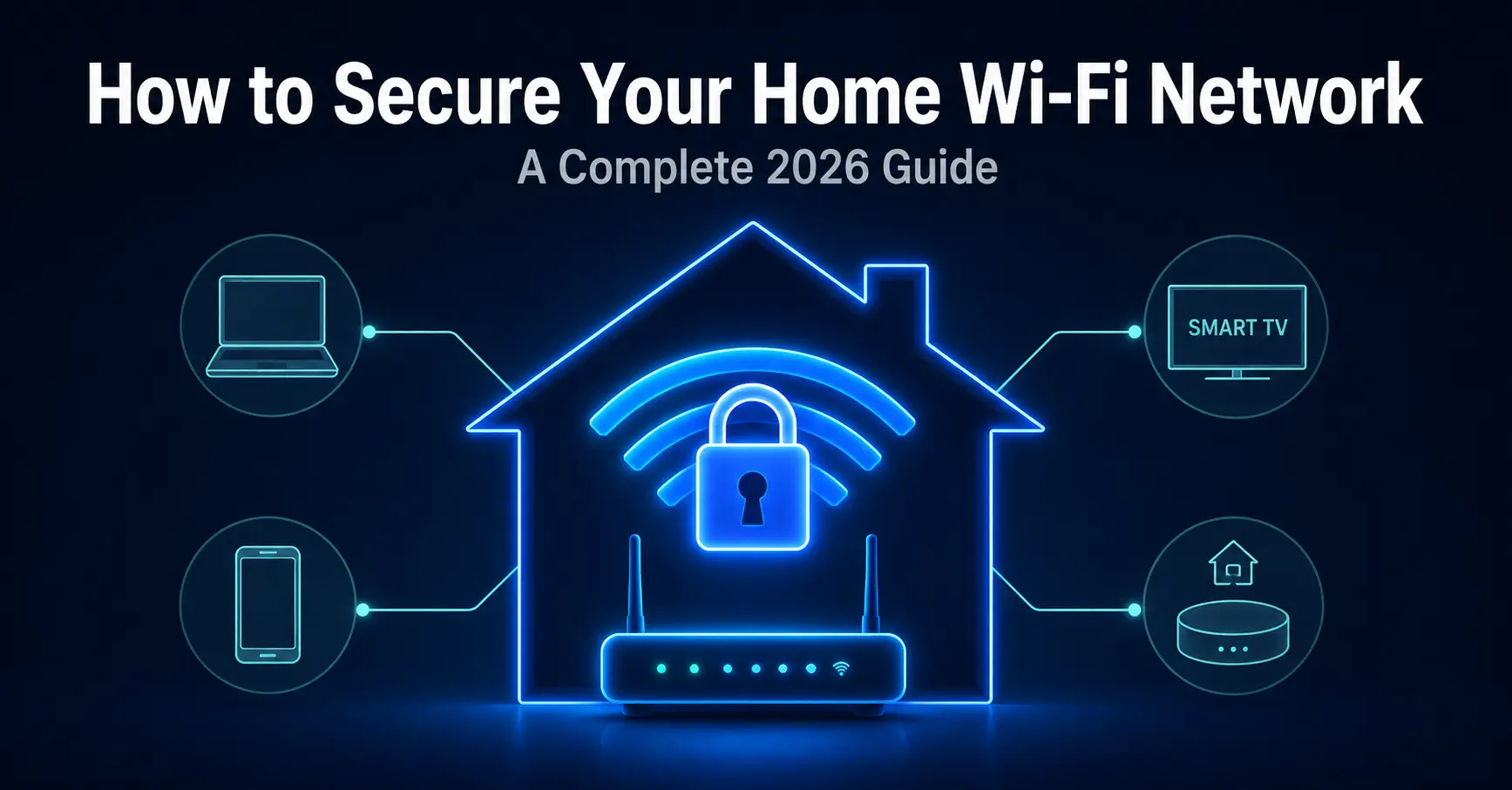
How to Secure Your Home Wi-Fi Network: A Complete 2026 Guide
Your home Wi-Fi network is the front door to every device in your house. Leave it unsecured and anyone within range can access your internet connection, monitor your traffic, and potentially reach your personal files, cameras, and smart home devices. The FBI’s Internet Crime Complaint Center (IC3) received over 880,000 cybercrime complaints in 2023, with home network intrusions contributing to billions in reported losses, as recorded in the FBI IC3 2023 Internet Crime Report. Most home users have never changed a single setting on their router since the day it was installed.
The good news is that securing your home Wi-Fi network does not require technical expertise. Most of the steps in this guide take under five minutes each and involve nothing more than logging into your router’s settings page through a web browser. The combination of a few targeted changes raises your network’s security from open target to a level that deters the vast majority of opportunistic attackers.
This guide covers every practical step: from changing default passwords and choosing the right encryption to setting up a guest network, disabling risky features, and keeping your router firmware current. Work through each section in order for the best result. Start with the single most important change you can make today.
Step One: Change Your Router’s Default Admin Password
Why Default Passwords Are a Critical Vulnerability
Every router ships from the factory with a default admin username and password. These defaults are publicly documented and easy to find online. An attacker on your network, or anyone who has accessed your Wi-Fi, can open a browser, type your router’s IP address, and log in with the default credentials if you have never changed them.
Once inside your router’s admin panel, an attacker can change any setting, redirect your traffic, disable security features, or lock you out entirely. Changing the admin password is the single most important step to secure your home Wi-Fi network, and it takes about two minutes to complete.
How to Change Your Router Admin Password
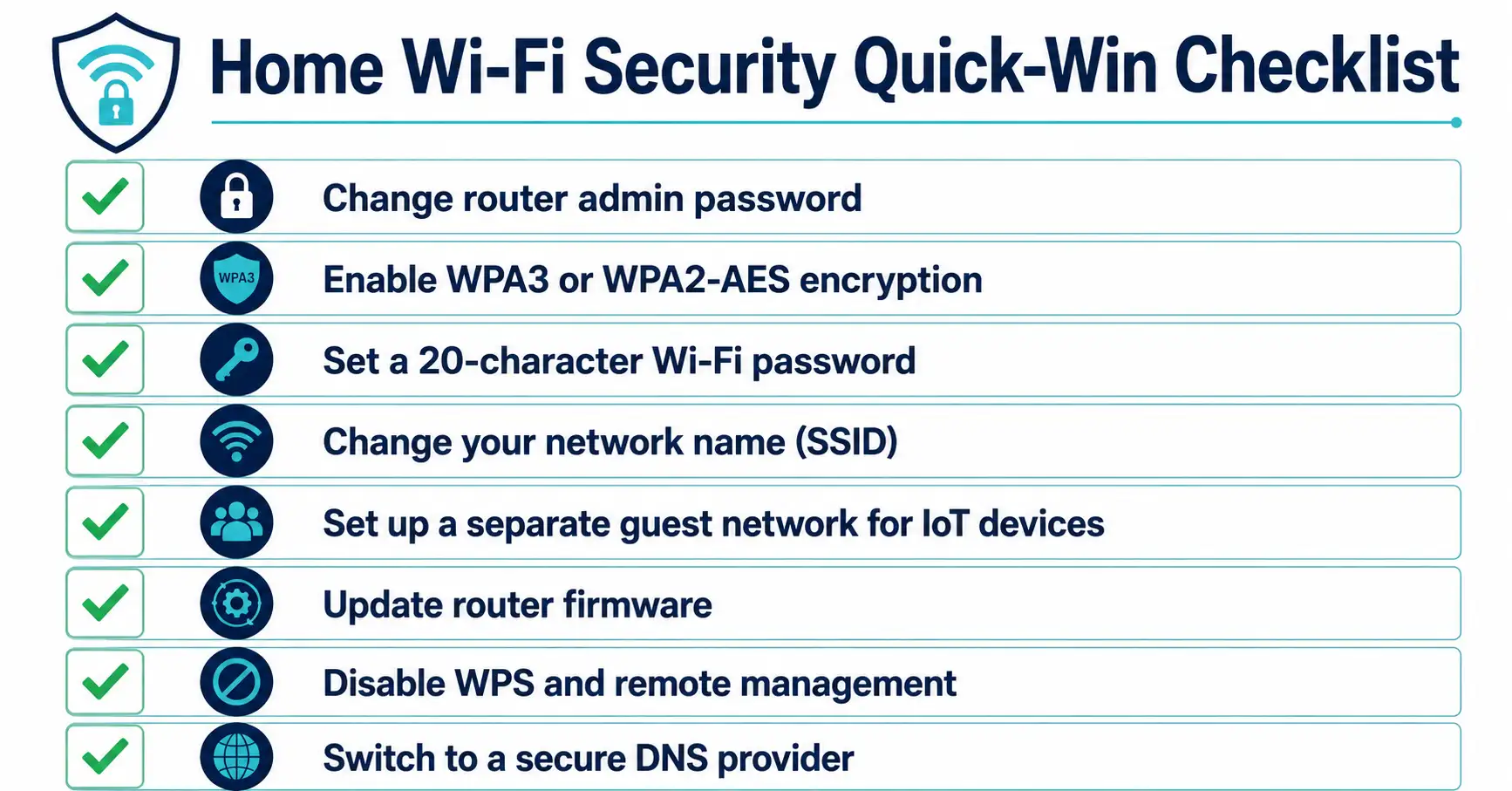
To access your router settings, open a web browser on any device connected to your home network and type your router’s IP address into the address bar. Most routers use 192.168.1.1 or 192.168.0.1. If neither works, check the label on the back of your router. Log in with the current admin credentials, find the Administration or Security section, and change the password to something long and unique.
Use a password of at least 16 characters that you do not use anywhere else. A password manager like Bitwarden or 1Password makes this easy to store and retrieve. Do not use the router’s serial number or your address as the password. Those are the first things an attacker will try.
Step Two: Set a Strong Wi-Fi Password and the Right Encryption
Choose WPA3 or WPA2 Encryption
Wi-Fi encryption determines how your network traffic is scrambled so that unauthorised parties cannot read it. The encryption standard your router uses is the single biggest technical factor in your wireless security. There are three options you will encounter:
- WPA3: the current best standard, introduced in 2018, with stronger encryption and protection against offline password-guessing attacks. Use this if your router supports it.
- WPA2: the previous standard, still secure when paired with a strong password. Acceptable if WPA3 is not available on your hardware.
- WEP and WPA: older standards that are fundamentally broken. Any network running WEP or WPA is vulnerable regardless of password strength. If your router only supports these, it is time to replace it.
In your router’s wireless settings, look for a Security Mode or Encryption option. Set it to WPA3 Personal if available. If not, choose WPA2-AES. Avoid TKIP, which is an older and weaker encryption variant, as noted by the Cybersecurity and Infrastructure Security Agency’s home network security guidance.
Create a Strong Wi-Fi Password
Your Wi-Fi password (sometimes called the network key or pre-shared key) is what prevents unauthorised devices from joining your network. A short or simple password can be cracked by automated tools in minutes through brute force, which means the tool tries millions of combinations automatically until it finds the right one.
Use a Wi-Fi password of at least 20 characters, combining uppercase letters, lowercase letters, numbers, and symbols. A random string from a password manager is ideal. You only need to type this password once per device when you first connect, so length is not an inconvenience in practice. Write it down and store it somewhere physically secure at home.
Step Three: Change Your Network Name (SSID)
What Your Network Name Reveals
Your network’s name, called the SSID (Service Set Identifier), is what appears when you scan for available Wi-Fi networks. Most routers broadcast a default network name that includes the manufacturer’s name, like “NETGEAR-5G” or “BT-Hub6-XXXX.” This tells anyone nearby exactly what router hardware you are using, which makes it easier to look up known vulnerabilities specific to that model.
Change your SSID to something neutral that gives away no information about your hardware, location, or household. Avoid using your name, address, or apartment number in the network name. Also avoid names that invite attention or seem to reference security tools, which can attract curious attackers rather than deter them.
Should You Hide Your SSID?
Some guides recommend hiding your SSID so it does not appear in nearby device scans. This is worth understanding clearly. Hiding your SSID does not stop a determined attacker. Tools like Wireshark can detect hidden networks from the probe requests your devices send out when they search for known networks. SSID hiding provides minimal real security benefit and makes connecting new devices more inconvenient, so it is optional rather than essential. Changing the name is more useful than hiding it.
Step Four: Set Up a Separate Guest Network
Why a Guest Network Matters
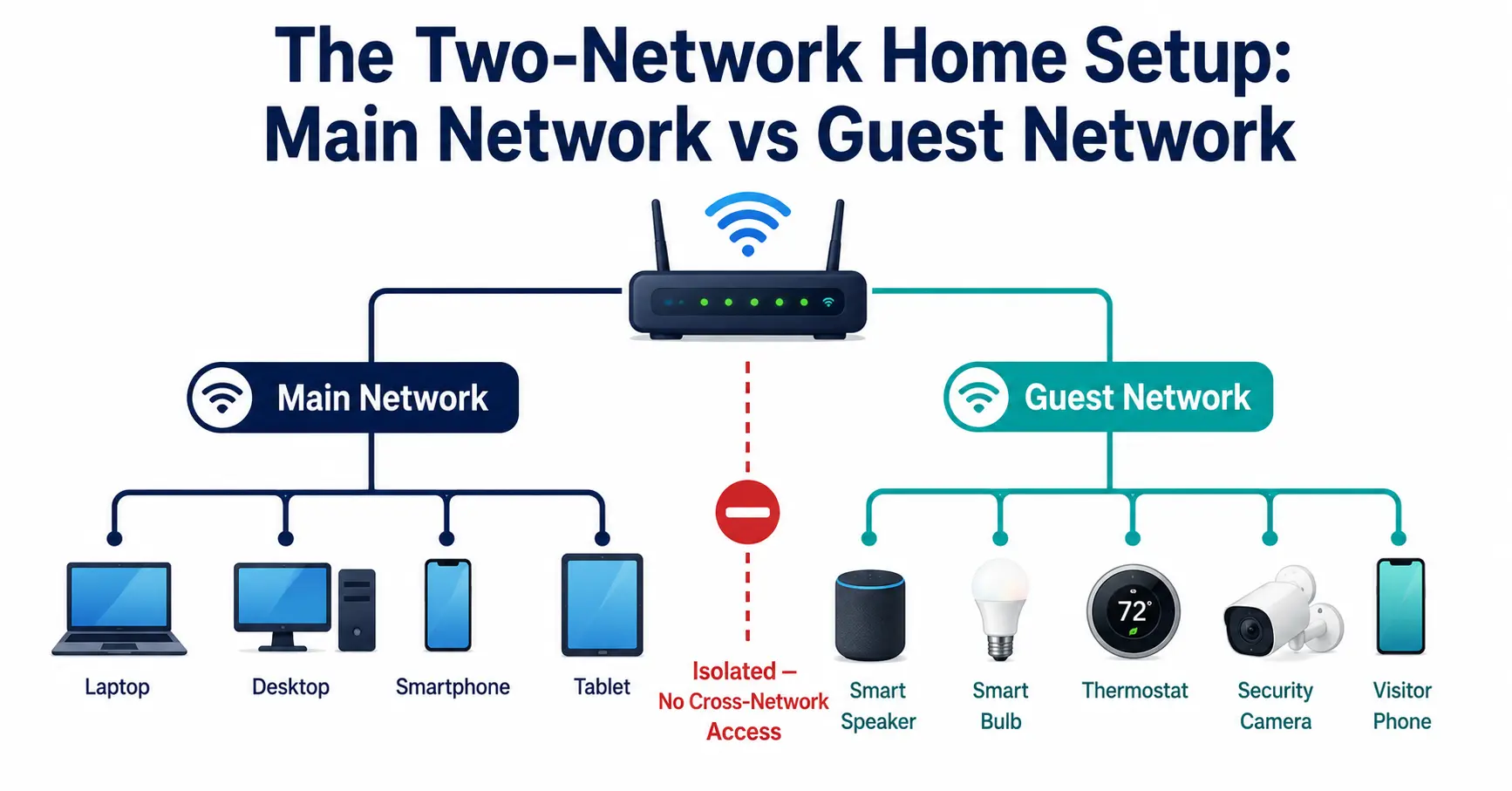
A guest network is a separate wireless network that runs on the same router but stays isolated from your main home network. When visitors connect to your guest network, they get internet access but cannot see or interact with your other devices, such as your computers, smart home hubs, NAS drives (network-attached storage), or security cameras.
The guest network also solves a practical problem for smart home devices. Many Internet of Things (IoT) devices, such as smart bulbs, plugs, thermostats, and voice assistants, have weaker security than a modern laptop or phone. Putting all your smart home devices on the guest network isolates them from your computers and phones. If one IoT device is compromised, the attacker cannot use it to reach your main network.
How to Set Up a Guest Network
Most modern routers include a guest network option in their wireless settings. Enable it, give it a distinct name, assign it a strong password different from your main network, and enable client isolation (also called AP isolation), which prevents guest network devices from communicating with each other. Keep the guest network on the 2.4 GHz band if you want maximum range for smart home devices, and reserve the 5 GHz band for your primary devices where speed matters more.
Step Five: Keep Your Router Firmware Updated
What Firmware Is and Why It Gets Exploited
Router firmware is the software that runs on your router, controlling every function it performs. Router manufacturers release firmware updates to fix security vulnerabilities, improve performance, and add features. When researchers discover a vulnerability in a router model, manufacturers typically release a patch. Routers running outdated firmware remain exposed to known vulnerabilities that the patch already fixes.
This matters more than most people realise. Security researchers regularly discover and disclose serious vulnerabilities in consumer routers. A 2022 study found that 75 percent of home routers had unpatched critical vulnerabilities, according to analysis by Broadband Genie and independent security researchers. Many of those vulnerabilities had patches available that owners had simply never applied.
How to Update Your Router Firmware
Log into your router’s admin panel and look for a section called Firmware Update, Software Update, or Administration. Some routers check for updates automatically and notify you. Others require a manual check. For routers that do not support automatic updates, set a reminder to check every three months.
Some modern mesh routers, like those from Eero, Google Nest, and Ubiquiti, update automatically by default and require no manual action. If your router is more than five years old and the manufacturer no longer provides firmware updates for your model, consider replacing it. An unsupported router accumulates vulnerabilities with no path to patching them, as highlighted by Tom’s Guide’s router security best practices guide.
Step Six: Disable Features That Increase Your Attack Surface
Turn Off WPS
Wi-Fi Protected Setup (WPS) is a feature designed to make connecting new devices easier. You press a button on the router and the device connects without entering a password. The PIN-based version of WPS has a well-documented vulnerability that allows an attacker to crack the PIN in a matter of hours using freely available tools, gaining full access to your network in the process.
Disable WPS entirely in your router settings. The convenience it offers is not worth the security risk. On most routers, you will find the WPS toggle under Wireless Settings or Advanced Wireless. Disable it and use the standard password method to connect new devices instead.
Disable Remote Management
Remote management, sometimes called remote access or WAN management, allows you to log into your router’s admin panel from outside your home network, typically through the internet. Unless you have a specific, active need to manage your router remotely, disable this feature. Leaving it enabled exposes your router’s admin interface to the entire internet rather than only to devices on your local network.
Additionally, disable UPnP (Universal Plug and Play) unless you specifically need it for a device or service. UPnP allows devices on your network to automatically open ports on your router without requiring manual configuration. While convenient, it has a significant history of being exploited by malware to punch holes through home network defences.
Disable Remote Desktop Protocol Access
If you do not use remote desktop access to reach your home computers from outside, ensure your router is not forwarding Remote Desktop Protocol (RDP) port 3389 to any device. RDP is one of the most commonly targeted services in home network attacks. Check your router’s port forwarding rules and remove any rules forwarding port 3389 that you did not consciously create.
Step Seven: Use a Strong DNS Provider
What DNS Is and Why It Affects Security
The Domain Name System (DNS) is the internet’s phone book. When you type a website address, DNS translates it into a numerical IP address your device can connect to. By default, your router uses your internet service provider’s (ISP) DNS servers. Many ISP DNS services offer minimal privacy protection and no filtering against known malicious domains.
Switching to a secure, privacy-focused DNS provider improves two things: privacy, because fewer parties log your browsing queries, and security, because several DNS providers offer automatic blocking of known malware and phishing domains before your device ever connects to them.
Well-established options include Cloudflare DNS (1.1.1.1), which is consistently among the fastest and offers a family filtering variant at 1.1.1.3 that blocks malware domains. Google Public DNS (8.8.8.8) is fast and reliable. Quad9 (9.9.9.9) focuses specifically on blocking malicious domains using threat intelligence feeds and blocked over 150 million threats per day in 2024, according to Quad9’s published statistics on their threat-blocking DNS service. You can set your preferred DNS in your router’s WAN or Internet settings so all devices on your network benefit automatically.
Step Eight: Check Which Devices Are Connected to Your Network
Audit Your Connected Devices Regularly
Most routers include a device list in their admin panel showing every device currently connected to your network. Review this list periodically to spot anything unfamiliar. An unknown device could be a neighbour connecting through a weak password, malware on a compromised device beaconing to an attacker, or simply a forgotten device you no longer need.
Look for the Attached Devices, Connected Clients, or DHCP Client List in your router’s admin panel. Cross-reference each entry against the devices you know you own. If you find a device you do not recognise and cannot identify after checking your phones, laptops, tablets, smart home devices, and consoles, change your Wi-Fi password immediately. All current devices will need to reconnect with the new password, which automatically removes any unauthorised device from your network.
Use MAC Address Filtering as an Additional Layer
Every network device has a unique hardware identifier called a MAC (Media Access Control) address. MAC address filtering lets you create an allowlist of known device addresses so your router only accepts connections from devices on that list. This adds friction for attackers who have obtained your Wi-Fi password because their device’s MAC address would not be on the approved list.
However, understand the limitation: MAC addresses can be spoofed (faked) by software, so a determined attacker can clone the address of an approved device. MAC address filtering is a useful additional layer rather than a standalone security measure, and it adds administrative overhead when you bring new devices home.
Step Nine: Position Your Router to Minimise Signal Leakage
Physical Placement Matters
Your router broadcasts its Wi-Fi signal in all directions. If your router sits next to an exterior wall, a significant portion of that signal radiates outside your home and is available to anyone on the street or in a neighbouring property. This is not something software settings can fully address, but physical placement can reduce it meaningfully.
Place your router as close to the centre of your home as practical. This maximises signal strength inside your home while minimising how far the signal extends beyond your walls. Also, reduce transmit power in your router’s wireless settings if the option is available and your coverage is already adequate. Lower transmit power shortens the effective range of your signal, reducing how much of it leaks outside your property.
Frequently Asked Questions
How do I know if someone is using my home Wi-Fi without permission?
Log into your router’s admin panel and check the connected devices list. Any device you do not recognise as your own is a potential unauthorised user. Signs outside the admin panel include unexplained slowdowns, unusual activity indicators on your router’s LED lights, or unexpected data usage charges from your ISP.
What is the best Wi-Fi security protocol to use in 2026?
WPA3 Personal is the current best standard and the one to use if your router supports it. If not, WPA2-AES is acceptable with a strong password. Avoid WEP, WPA, and WPA2-TKIP, as these older protocols have known vulnerabilities that make your network easy to compromise regardless of password strength.
Should I use a VPN on my home network?
A virtual private network (VPN) encrypts your internet traffic between your device and the VPN server, which protects your privacy on public networks and prevents your ISP from monitoring your browsing. For home use, a VPN is optional rather than essential, but it adds a useful privacy layer. Some routers support running a VPN at the router level, which covers every device on the network automatically.
How often should I change my Wi-Fi password?
Change your Wi-Fi password immediately if you suspect it has been shared more widely than intended, if you find an unknown device on your network, or if a guest you no longer trust had access to it. For general hygiene, changing it once a year is a reasonable practice. The password for your router admin panel should stay separate and be kept private to your household.
Is it safe to use the default router provided by my ISP?
ISP-supplied routers vary significantly in quality and update frequency. Some receive regular firmware updates from the ISP. Others do not. Check whether your ISP’s provided router is still receiving firmware updates and apply the same security steps covered in this guide regardless of hardware source. If your ISP’s router is several years old with no recent updates, using your own router gives you more control over patching and settings.
Does hiding my Wi-Fi network name make it more secure?
Not meaningfully. Hiding your SSID prevents it from appearing in nearby scans, but any device scanning for networks can still detect a hidden network from the probe requests your devices broadcast. Changing your network name to something neutral is more useful than hiding it, and it does not add the inconvenience of manually entering a hidden SSID on every new device.
Lock Down Your Home Wi-Fi: Start Today and Stay Protected
Securing your home Wi-Fi network is one of the highest-value security tasks you can complete with minimal effort. Most of the steps in this guide take under five minutes each. Together, they close the most common entry points attackers use to exploit home networks: default credentials, weak passwords, outdated firmware, risky features left enabled from the factory, and a single unsegmented network that puts every device at risk if one is compromised.
The layered approach matters. No single step makes your network impenetrable, but each one raises the cost and difficulty of an attack. A network with a strong WPA3 password, updated firmware, a disabled WPS, a separate guest network for IoT devices, and a changed admin password is dramatically more secure than the average home network, which has typically had none of those changes applied since installation.
Start with the two changes that deliver the most immediate impact: change your router admin password and set a strong Wi-Fi password with WPA2 or WPA3 encryption. Then work through the remaining steps over the following week. The full process takes less than an hour and the protection lasts as long as you keep the firmware current.
For the most up-to-date guidance on home network security from a government cybersecurity authority, the CISA home network security guidance is the definitive reference and updates regularly as new threats emerge. If you want deeper technical reading on router hardening, the Tom’s Guide router security guide covers additional advanced settings worth exploring once the essentials are in place.

Prince Anichi
Founder and Lead Technology Editor at Ortechy. Covering digital economy shifts, tech ecosystems across Africa, cybersecurity intelligence, and emerging software platforms.